SingleCase Outlook Add-in
File emails to cases, track what has been filed, and manage documents, all without leaving Outlook.
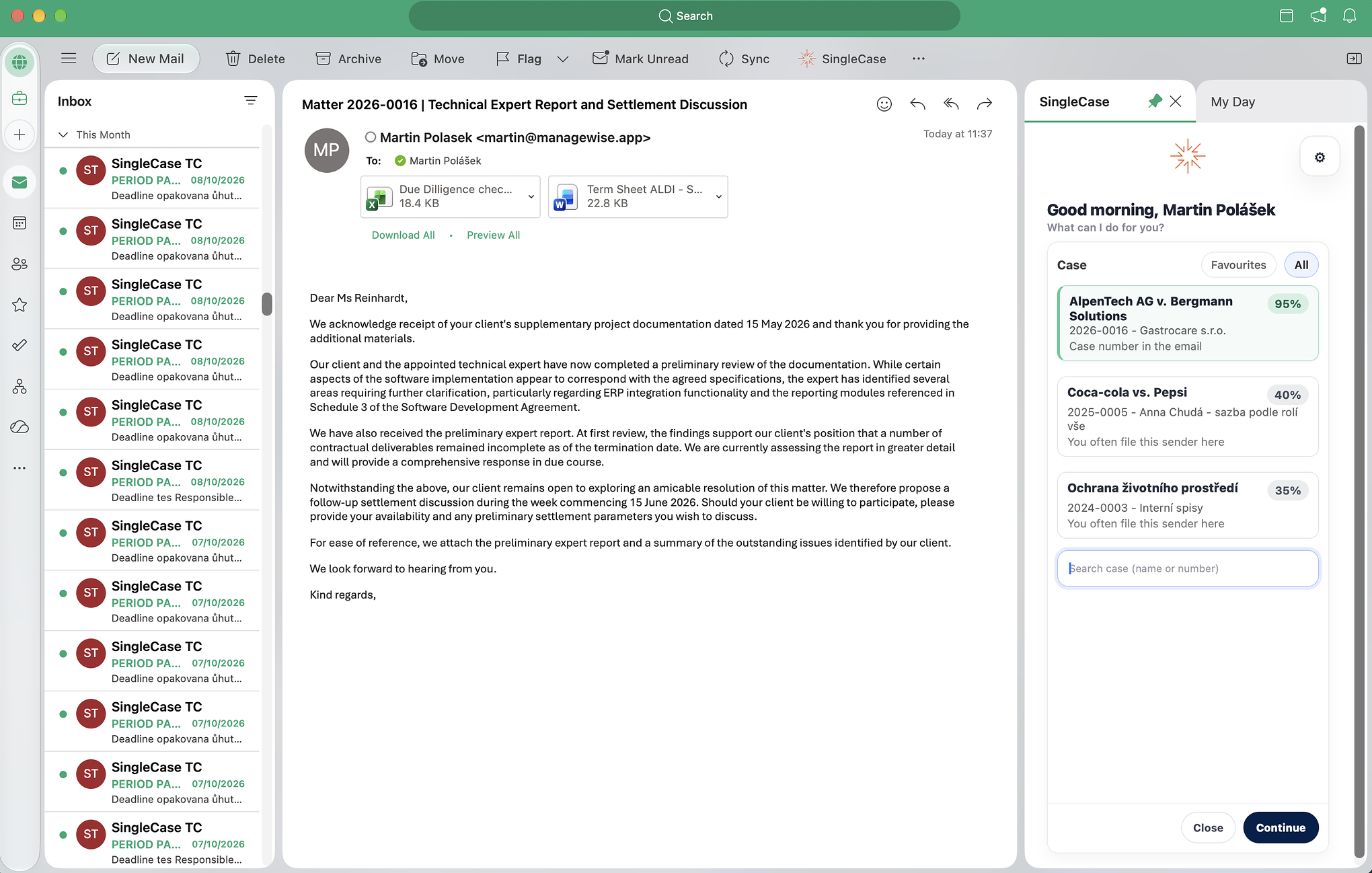
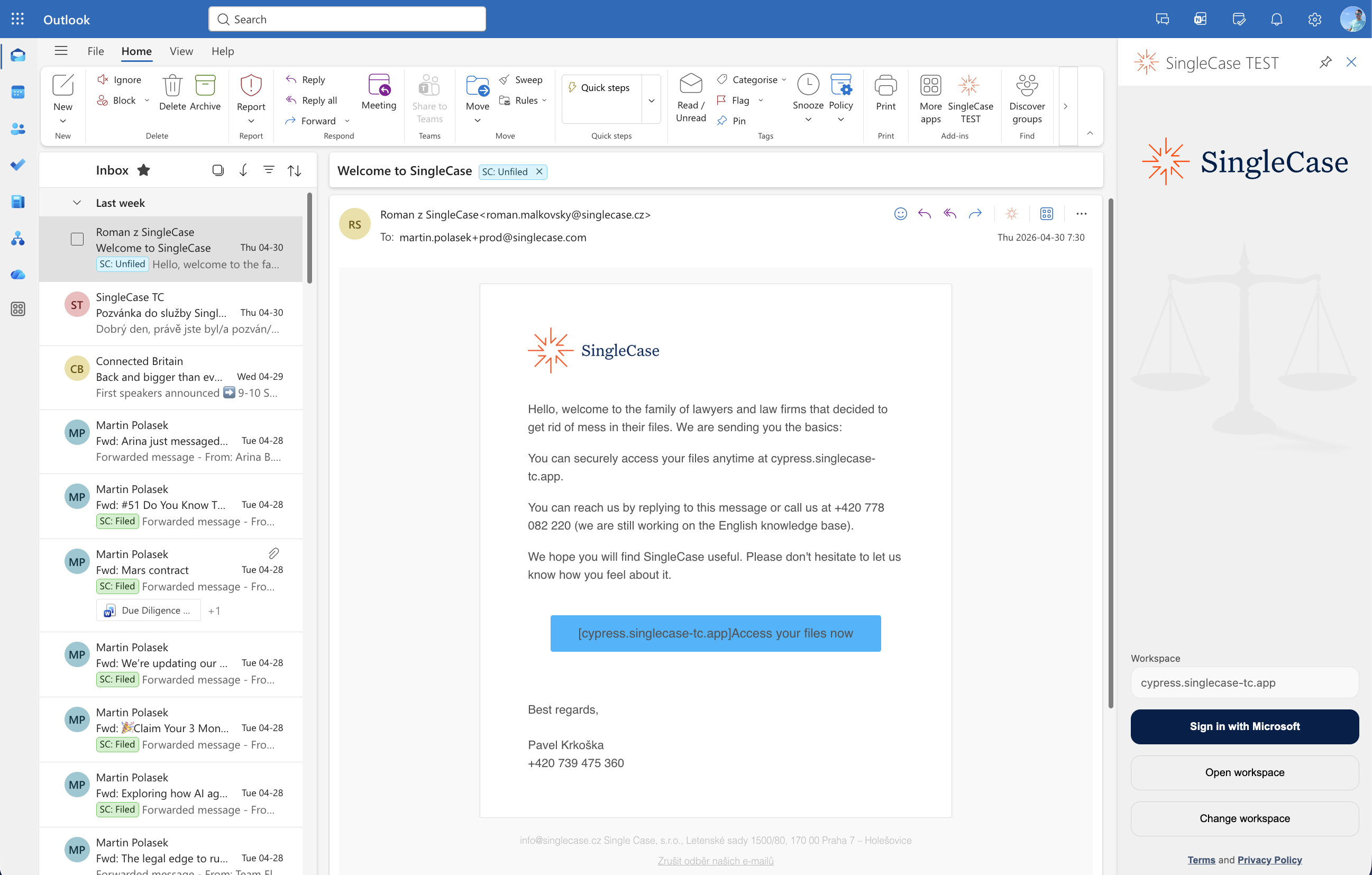
SingleCase Outlook Add-in — taskpane view alongside your inbox
Where do you want to start?
IT administrator? Go to Install and update the add-in or the Enterprise deployment guide.
Key capabilities at a glance
- Available everywhere — Appears as a panel on the right side of Outlook when you open an email. Supported on Outlook for Windows, Mac, and Outlook on the Web.
- Case search and suggestions — Search by client, case name or number. For emails that are not filed yet, the add-in suggests the most likely cases before you type anything.
- Full attachment control — Choose which attachments to include (all are selected by default), rename them, and choose the case folder they are saved to.
-
Rename before filing — Rename any attachment before it is uploaded, so
scan0001.pdfreaches the case under a name your colleagues recognise. The email in Outlook stays untouched. - Direct document access — After filing, click through to the case or any individual document, and open attachments for editing with one click — changes are versioned directly in SingleCase.
- Visible filing status — Filed emails get an SC: Filed Outlook category label, visible across all your devices. If a colleague has already filed an email, the add-in shows it as filed when you open it.
- Duplicate warning — The add-in warns you before you file an email that is already filed.
- Sign in once — No repeated logins. Authorize once via Microsoft SSO and the add-in keeps you signed in automatically.
- IT-managed deployment — Deploy to all users at once via the M365 Admin Center. Updates are delivered automatically in the background — no reinstallation needed.
What the add-in does
The SingleCase Outlook Add-in connects Outlook to SingleCase. It lets you save emails and their attachments to the right case without leaving Outlook.
The add-in opens as a panel on the right side of Outlook. You can use it in two ways:
- When you open an email (read mode): the add-in checks whether the email is already filed, suggests the likely case, and files the email with the attachments you choose.
- While you write an email (compose mode): you choose the case before sending, and the add-in files the email when you click Send, automatically or after you confirm.
File received and sent emails
Choose a case and file the email you have open, from your inbox, Sent Items or any other folder.
File on Send
Pick the case while you write. The email is filed after you click Send, so there is no need to go back to Sent Items.
Case suggestions
The add-in suggests likely cases based on the email thread, case and court numbers in the email, and your filing history.
Attachment control
Choose which attachments to file, rename them before filing, and choose the folder they go to.
Filing status in Outlook
Filed emails get the SC: Filed label on all your devices, and the add-in warns you before you file an email twice.
Open filed documents
Open the case or any filed document in SingleCase, or open a document for editing, directly from the panel.
The add-in works in Outlook for Windows, Outlook for Mac and Outlook on the web. Check which versions are supported in Supported platforms.
Get the add-in
Before you can use SingleCase, the add-in needs to be in your Outlook. There are two ways this can happen:
Or install it yourself (public version — available in the Microsoft AppSource marketplace):
-
Open Outlook and click the Apps icon in the ribbon.

The Outlook ribbon — click the Apps icon (highlighted).
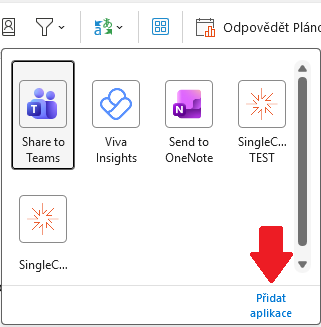
In the panel that appears, click Add Apps.
-
The Add Apps dialog opens. Type SingleCase in the search box and press Enter.
-
Click Add next to the SingleCase listing.
-
The add-in is installed. SingleCase will appear under Built for your org and the button will show in your ribbon the next time you open an email.
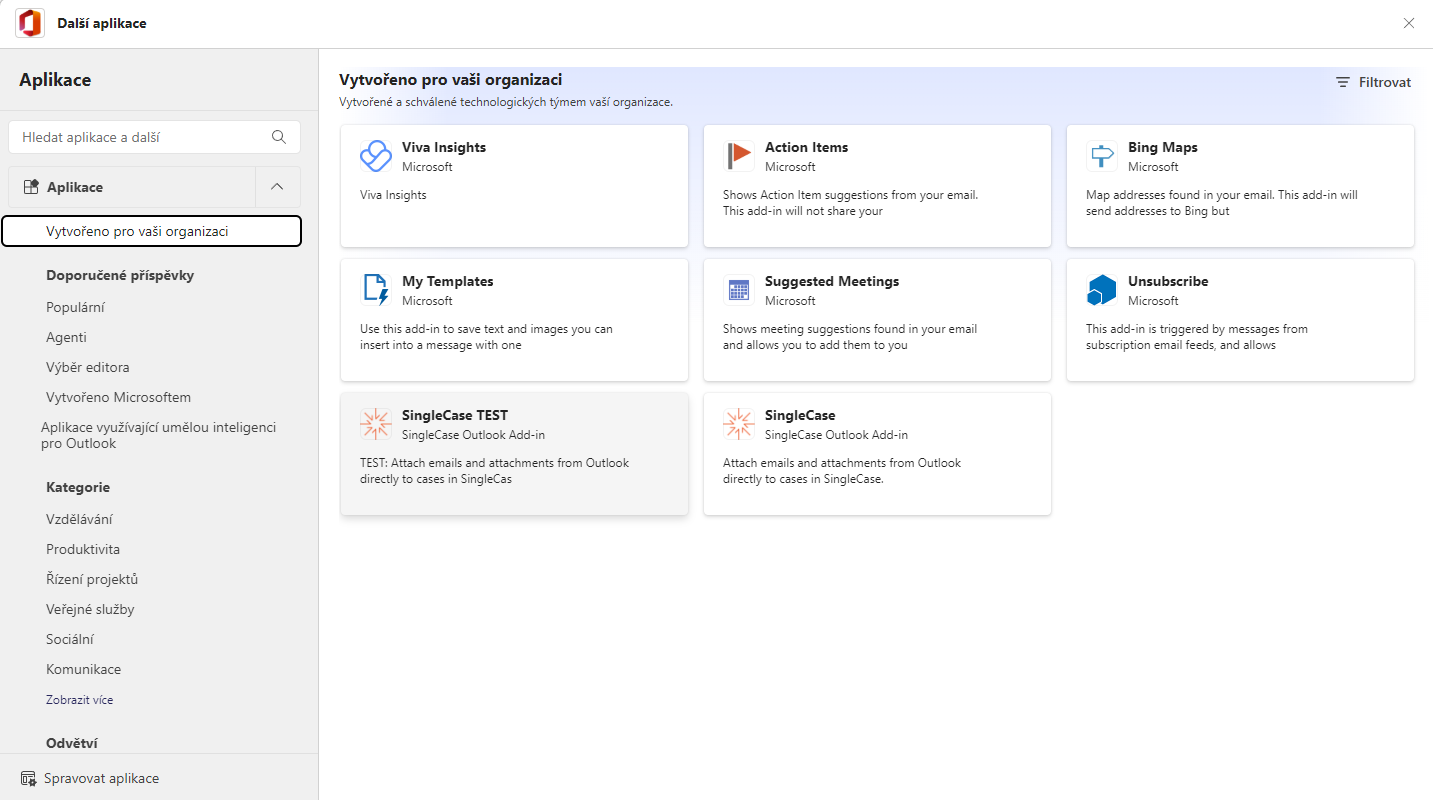
SingleCase listed under Built for your org after a successful installation.
Restart Outlook — the button should appear automatically in the ribbon on next launch.
-
Open Outlook and go to Tools menu → Get Add-ins.
-
The Add Apps dialog opens. Type SingleCase in the search box and press Enter.
-
Click Add next to the SingleCase listing.
-
The add-in is installed. SingleCase will appear under Built for your org and the button will show in your ribbon the next time you open an email.
You can add it manually using the Customise Toolbar option:
- Click the … (three-dot overflow menu) at the right end of the ribbon and choose Customise Toolbar…
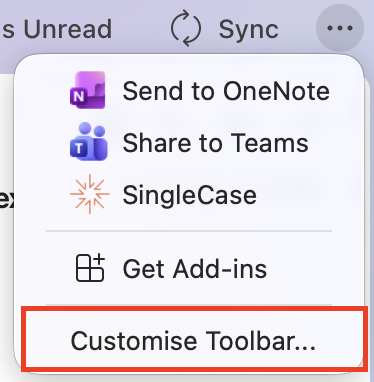
Click … in the ribbon, then choose Customise Toolbar…
- In the Customise Toolbar dialog, find SingleCase under Installed Add-ins on the right-hand side, then drag and drop it into the main toolbar area on the left.
- Click Done to save your changes.
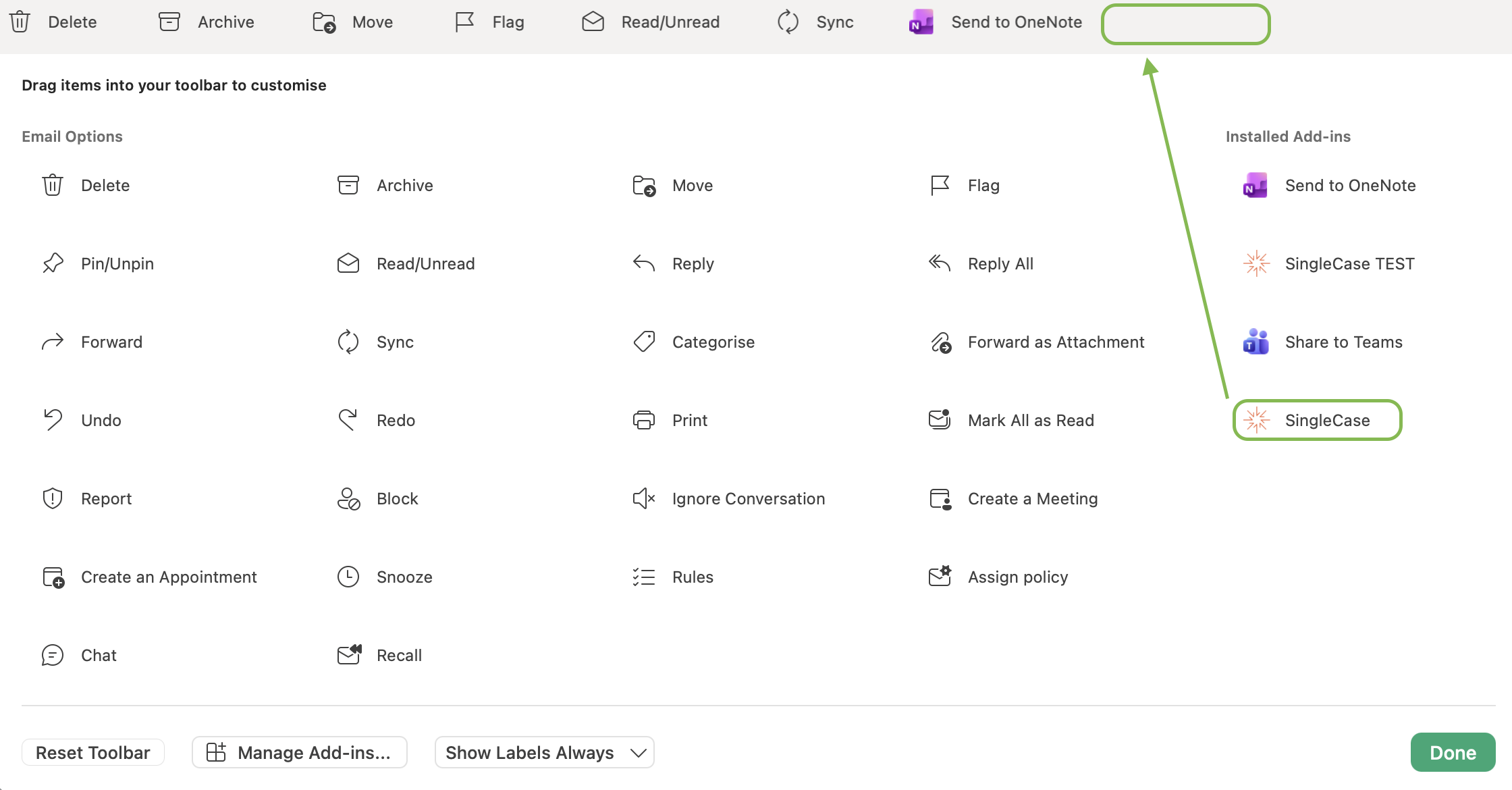
Drag SingleCase from the Installed Add-ins list into the toolbar to pin it to the ribbon.
-
Open any email in Outlook on the Web. On the right side of the email you will see a small app panel. Click Add apps at the bottom of that panel.
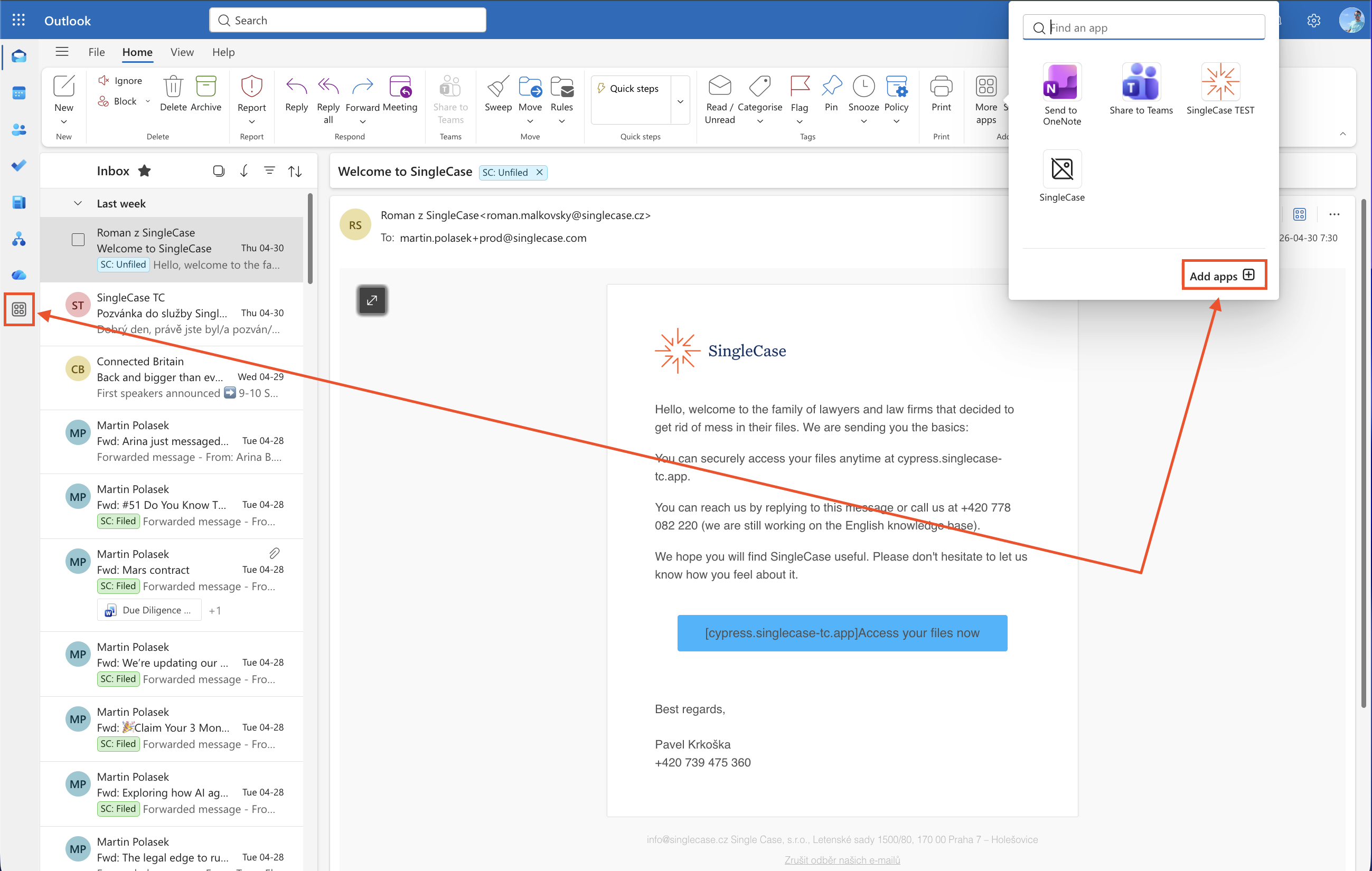
Click Add apps in the app panel on the right side of the email.
-
The Apps store opens. Type SingleCase in the search bar at the top and press Enter.
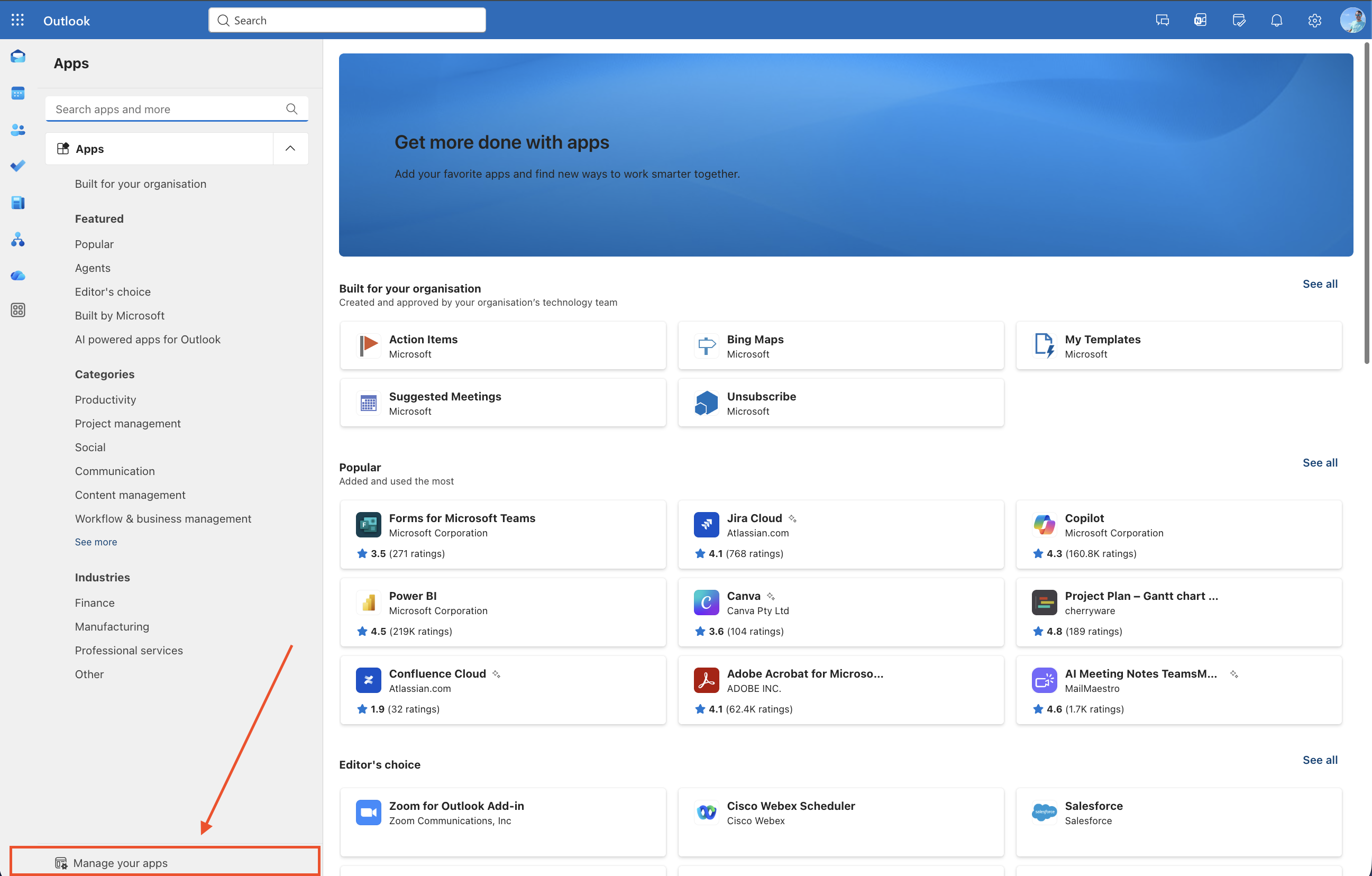
Search for SingleCase in the Apps store.
-
Click on the SingleCase result, then click Open to install the add-in.
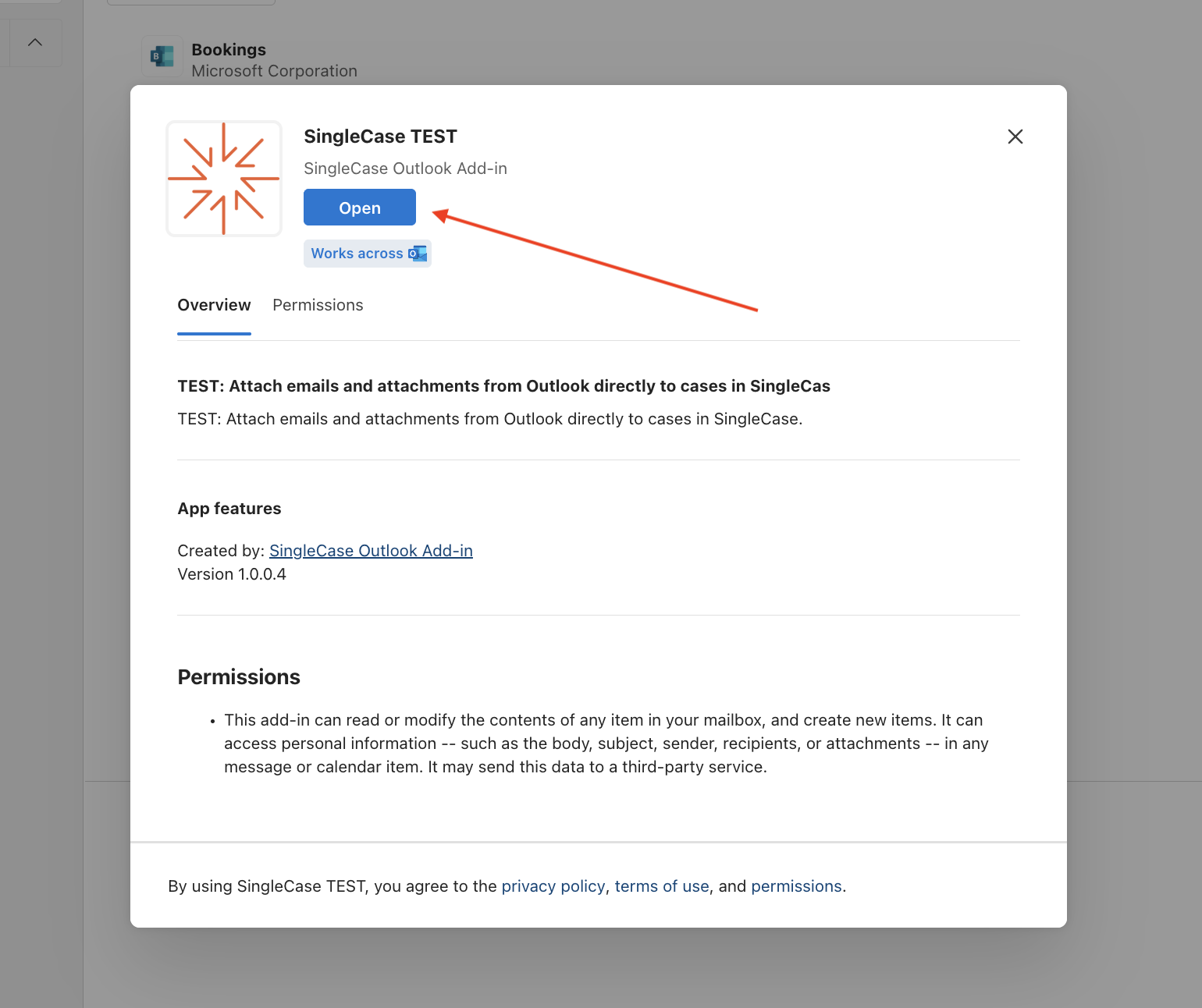
Click Open to install SingleCase.
Open the add-in
Open an email, then click the SingleCase button in the ribbon to open the panel.
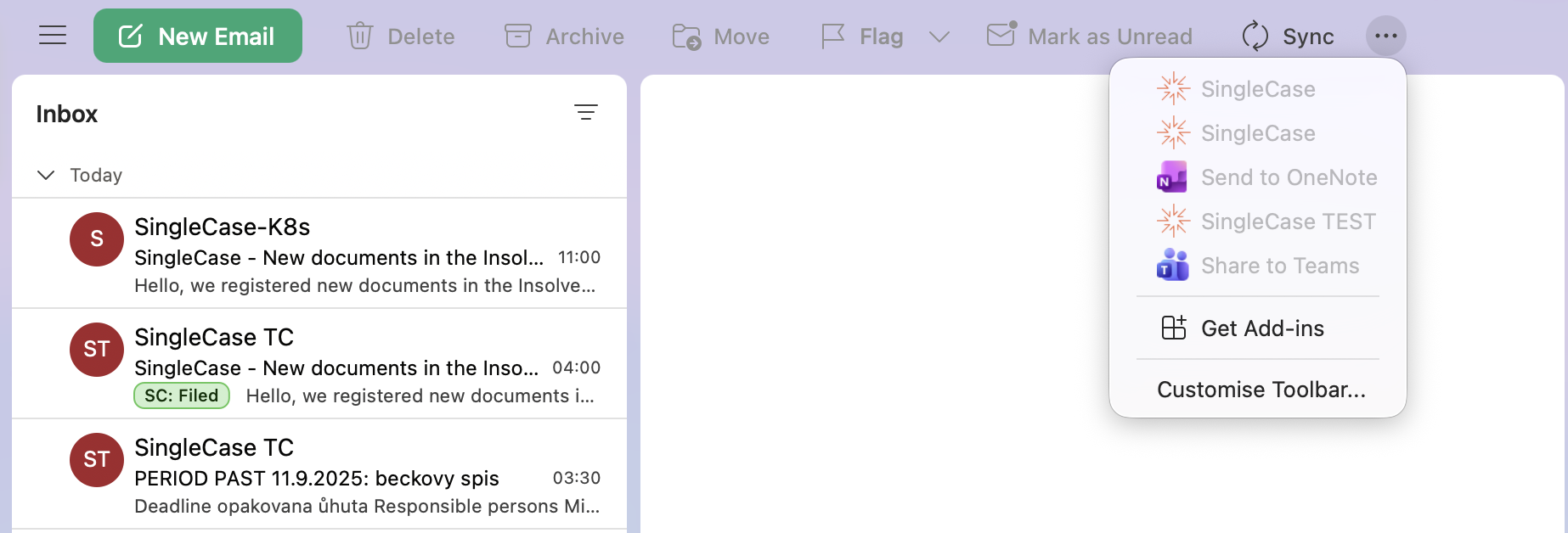
No email selected — button greyed out
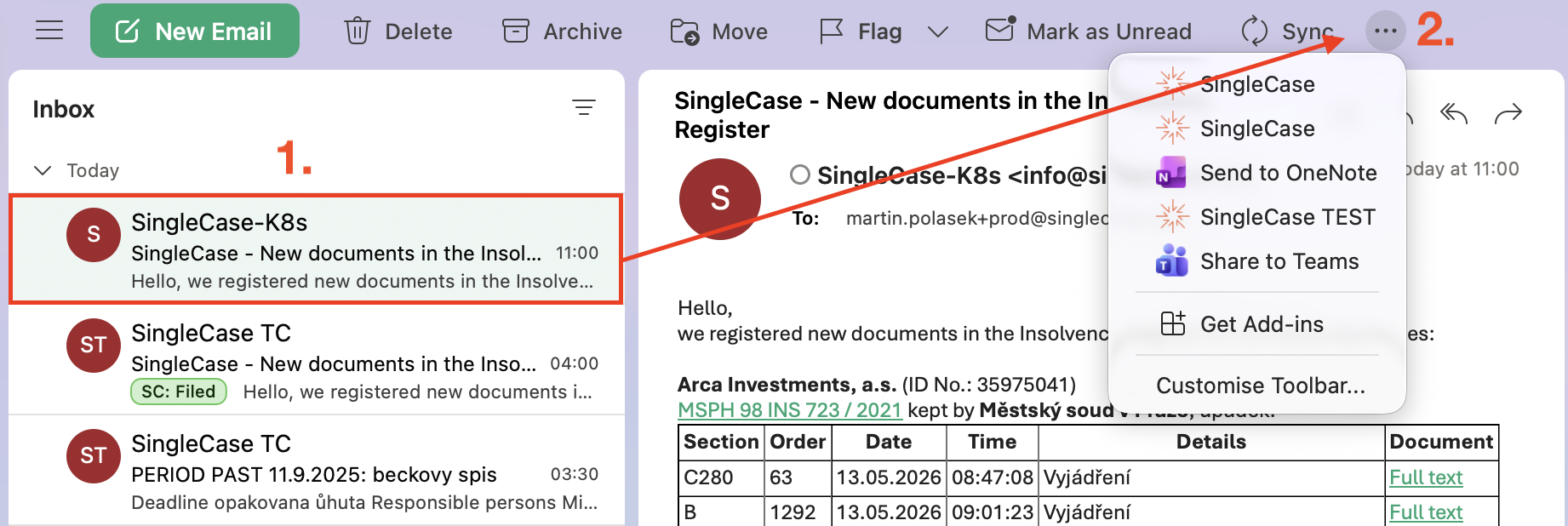
Email selected — add-in available
Keeping the panel open: click the pin icon (📌) in the top-right corner of the taskpane so it stays visible as you browse emails. Outlook tracks pin state separately for reading vs. composing — you may need to pin once in each context.

Pin icon in the taskpane header — click once to keep the panel open.
The pin resets when Outlook restarts — this is a known platform limitation.
Open any email. The SingleCase icon appears in the email toolbar at the top right — click it to open the add-in panel.
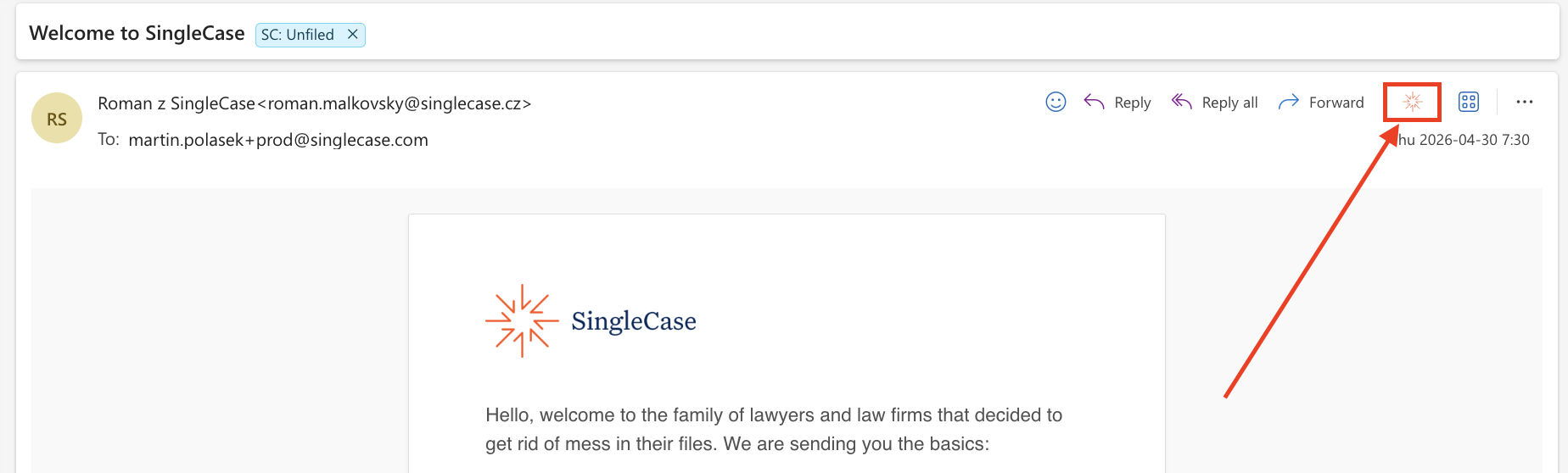
The SingleCase icon in the email toolbar — click it to open the panel.
Keeping the panel open: click the pin icon in the top-right corner of the taskpane header (next to the × button) to keep it visible as you switch between emails.

Pin icon in the taskpane header — shown here in the pinned state.
The pin resets when Outlook is closed or you sign out — this is a known platform limitation.
Sign in and choose your workspace
First Time Open
You only need to do this once. After setup the add-in keeps you signed in automatically.
-
Enter your workspace URL. On the welcome screen, type your SingleCase workspace address (for example
yourfirm.singlecase.app). If you are unsure of your address, click Open workspace to look it up in your browser.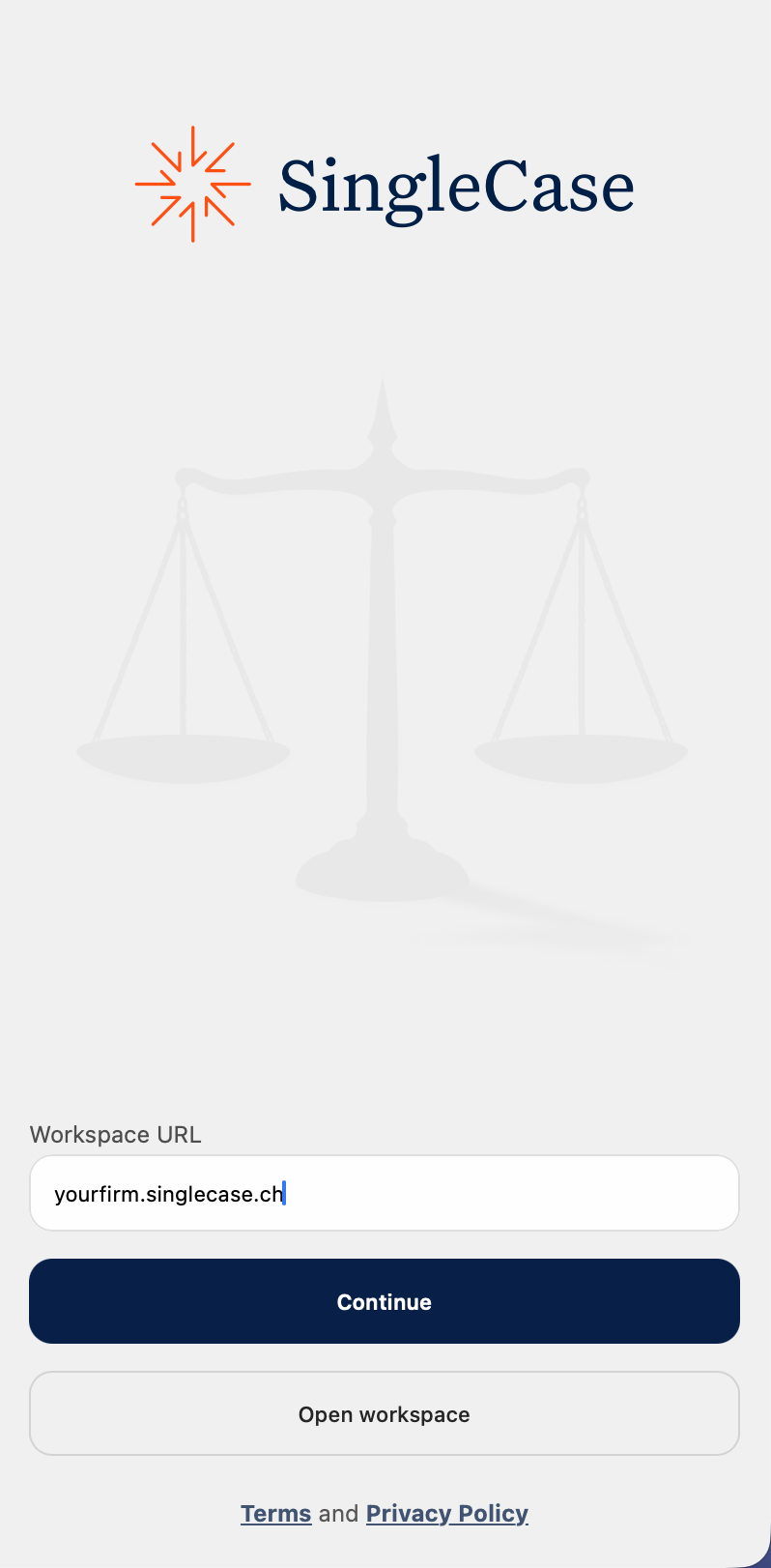
Enter your workspace address on the welcome screen.
-
Microsoft sign-in (may appear once). A Microsoft sign-in window may appear briefly — no action needed, it resolves automatically.
Microsoft sign-in prompt.
Staying signed in
The add-in uses the same account you already use for Outlook. As long as you are signed into Outlook, you are signed into SingleCase too — no password, no extra steps required.
You may be prompted to sign in manually in the following situations:
- You are using an older version of Outlook that does not support silent login. In that case, a button will appear — click it to log in via a popup:Sign in with Microsoft
- Your organisation requires additional consent for a new permission. A message will guide you through the one-time step.
Switching workspaces
To connect to a different SingleCase workspace, open Settings, click Change workspace and enter the new workspace address.
Supported platforms
The SingleCase add-in requires Outlook connected to Exchange Online (Microsoft 365 subscription or Exchange Online standalone). On-premises Exchange is not supported.
| Platform | Version / Mode | Supported | Notes |
|---|---|---|---|
| Windows | Outlook (M365) — Classic or New Outlook | ✓ Yes | Fully supported. Version 2206 (Build 15330+) or newer required. Docs ↗ |
| Outlook 2021 (retail perpetual) | ✓ Yes | Fully supported on an up-to-date install. | |
| Outlook 2021 LTSC (volume-licensed) | ✗ No | Supports add-in API up to version 1.9 only; this add-in requires 1.12. Please upgrade to M365. |
|
| Outlook 2019 | ✗ No | Supports add-in API up to version 1.6 only. Please upgrade to M365 or Outlook 2021 (retail). |
|
| Outlook 2016 | ✗ No | Not supported. Please upgrade. |
|
| Mac | Outlook for Mac M365, New Outlook (v16.38.506+) | ✓ Yes | Fully supported. New Outlook UI required. Docs ↗ |
| Outlook for Mac M365, Legacy Outlook | ✗ No | Legacy Outlook supports add-in API up to version 1.8 only; this add-in requires 1.12. In Outlook, disable the Legacy Outlook toggle to switch to New Outlook. | |
| Outlook for Mac below v16.38.506 | ✗ No | Update Outlook to the latest version via Help → Check for Updates. | |
| Web | Outlook on the web (Exchange Online) | ✓ Yes | Fully supported at outlook.office.com. |
| Mobile | Outlook iOS / Android | ⟳ Soon | Mobile support is coming soon. |
Check Your Outlook Version
Not sure if your Outlook is compatible? Select your platform and paste your version string below.
Find in Help → About Outlook. Paste the full string, e.g. Version 2306 (Build 16.0.16529.20164)
File an email
The add-in files the email you have open: a received email from your inbox, or an email you sent, from Sent Items. It always files that one email, not the whole conversation. If you need other emails from the same thread in SingleCase, file each of them separately.
-
Open the email you want to file, in your inbox, Sent Items or any other folder.
-
Open the SingleCase panel from the ribbon, if it is not open yet (see Open the add-in).
-
Check what the panel says. The add-in first checks whether the email has already been filed.
- Already filed: the panel shows the case and the filed documents. There is nothing more to do.
- Not filed yet: the panel asks “This email isn’t filed yet. Do you want me to file it?” Click Yes, file it.
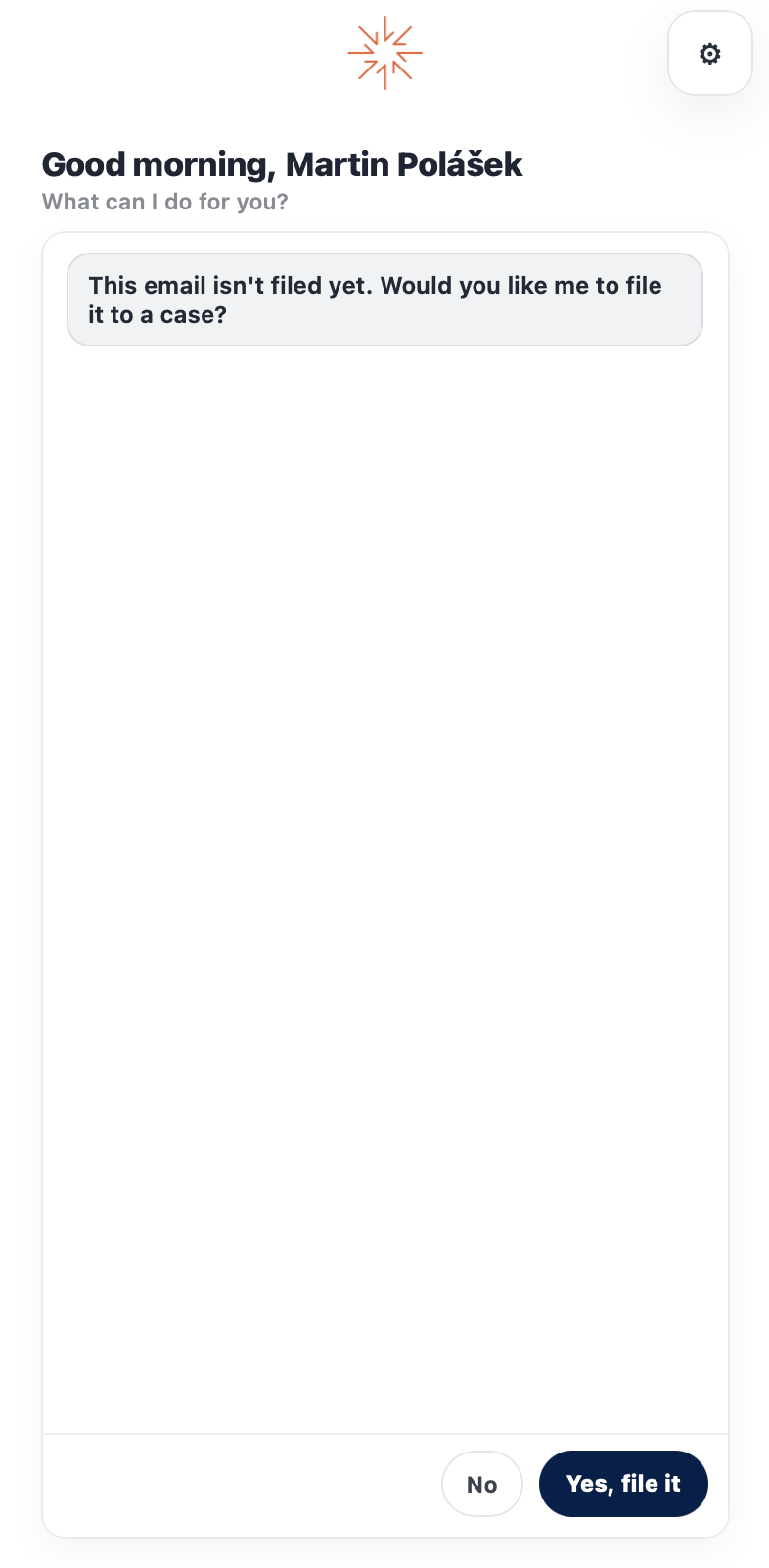
The add-in asks whether you want to file the email.
-
Select the case. Suggested cases appear at the top of the list, and you can search for any other case. See Finding a case and Case suggestions.
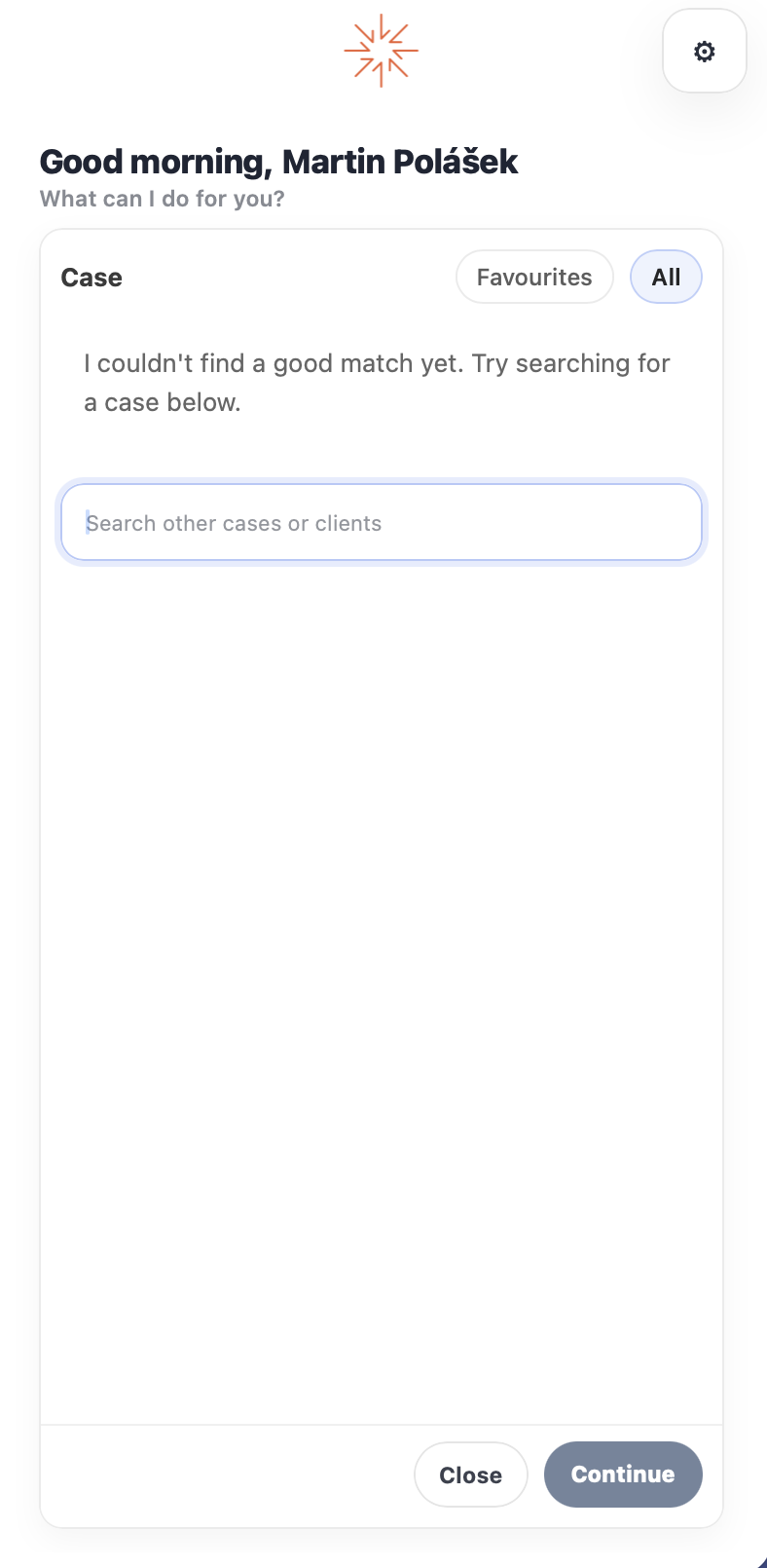
Search for a case by client, name or number.
-
Choose what to file. Select the attachments, the destination folder and, if needed, new file names. See Choose attachments, folder and name.
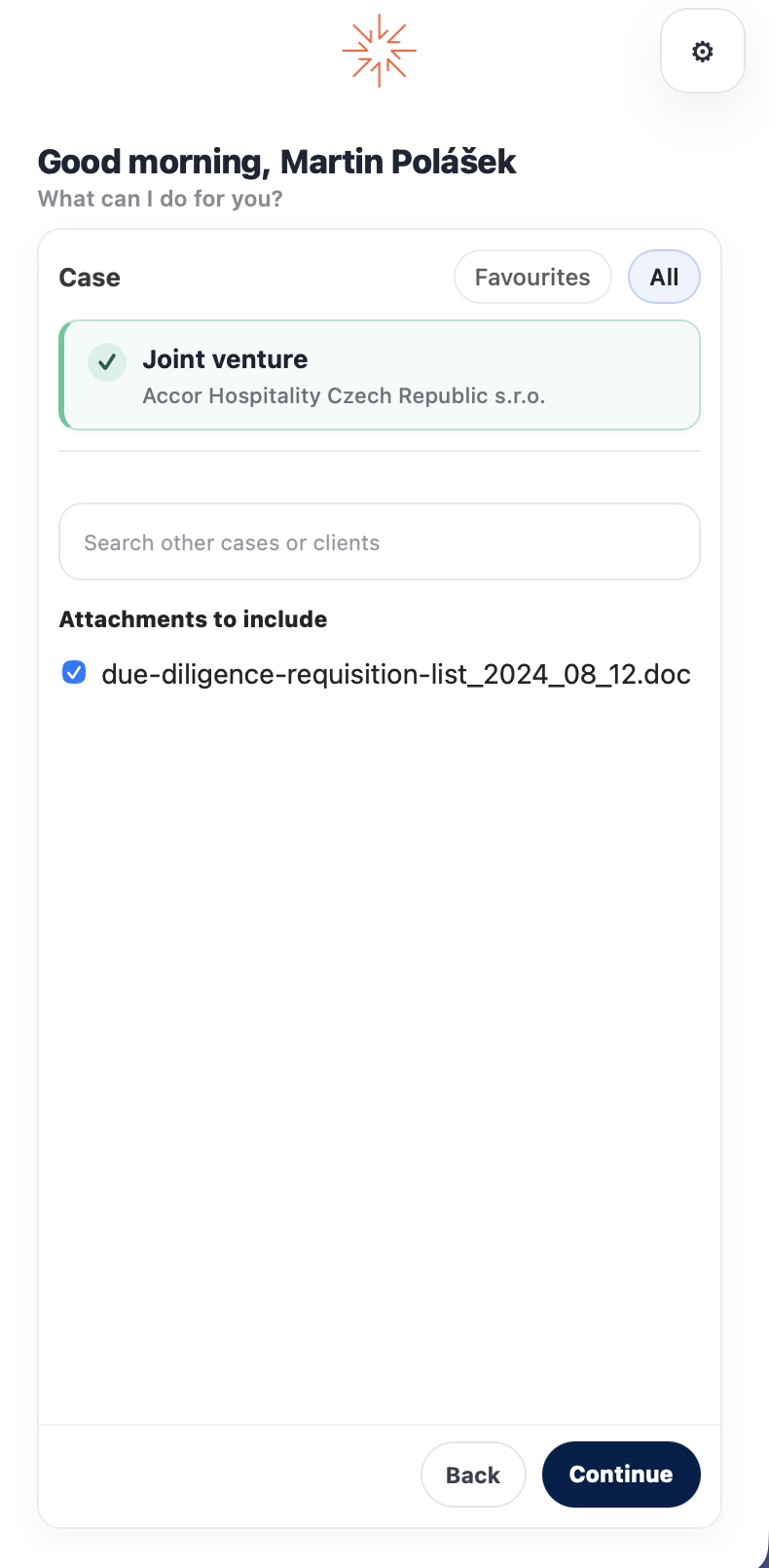
Select the attachments to file with the email.
-
Click Continue. The add-in uploads your selection to SingleCase and shows a summary. The email in Outlook gets the SC: Filed label. See After filing.
Choose attachments, folder and name
After you select a case, the add-in shows what will be filed. The email itself is always filed, as an .eml file. If the email has attachments, you can also choose which of them to file, rename them and choose the folder they go to. If the email has no attachments, these options do not appear and Continue files the email straight away.
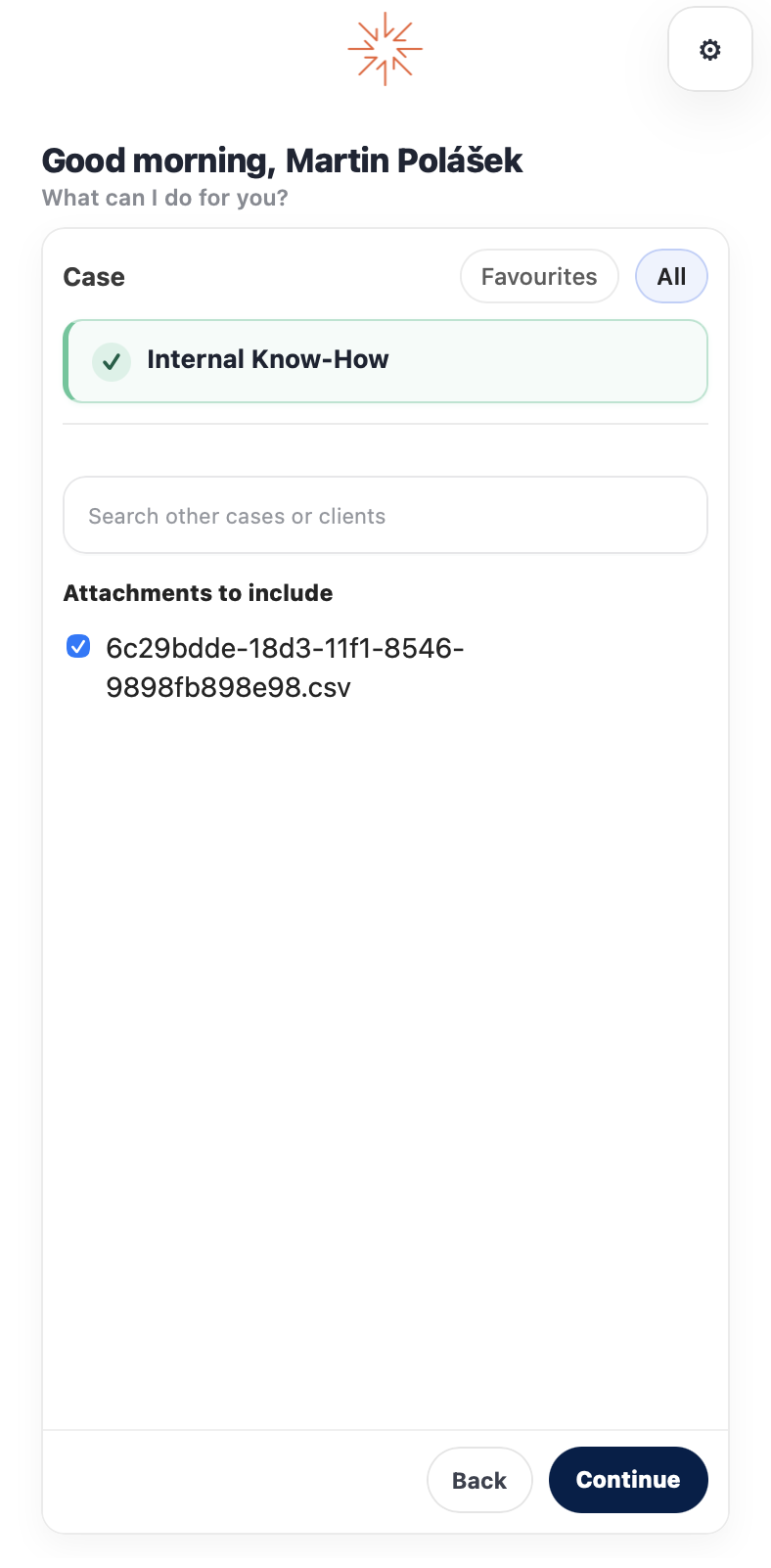
Choosing attachments
Under Attachments to include, every attachment has a checkbox and all of them are selected by default. Uncheck the ones you do not need. When an email has more than one attachment, Select all / Deselect all switches them all at once. You can file up to 50 attachments from one email.
When you are ready, click Continue.
Renaming an attachment before filing
Attachments often arrive with names that mean nothing inside a case, such as scan0001.pdf or IMG_4821.jpg. You can rename an attachment before it is filed, so it lands in SingleCase under a name your colleagues will recognise.
-
Click the pencil icon next to the attachment.
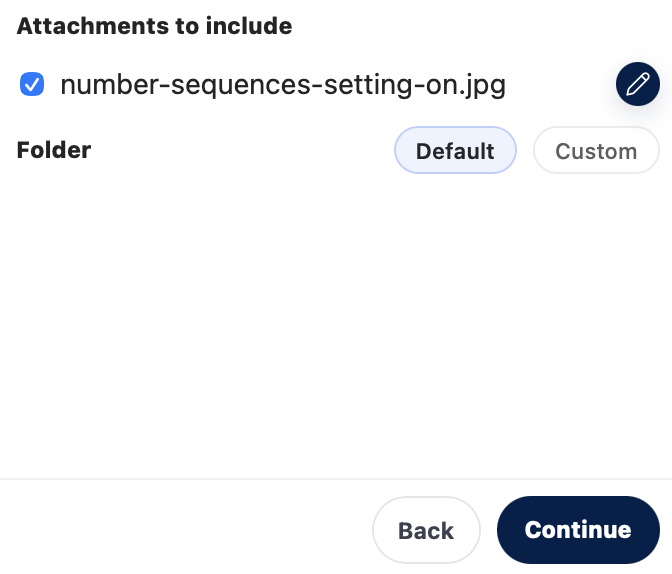
Click the pencil icon next to an attachment to rename it.
-
Type the new name and press Enter, or click outside the field. Press Esc to discard the change.
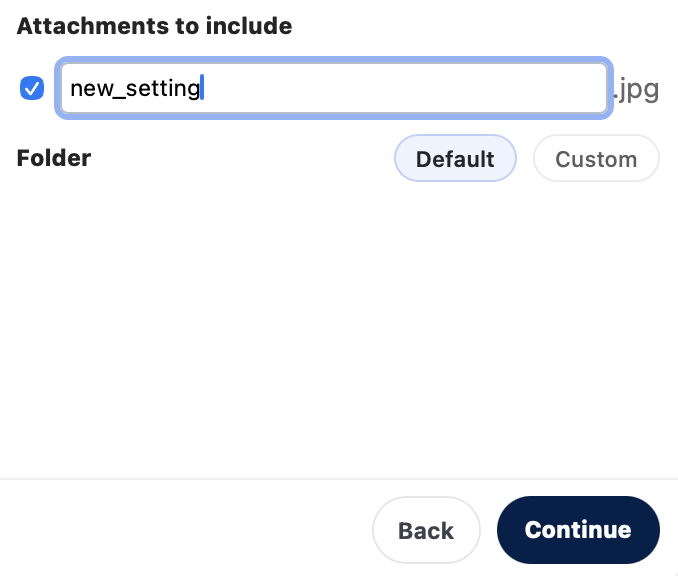
Only the name can be changed. The extension stays as it is.
-
Click Continue. The attachment is filed under the new name, and the add-in shows that name whenever you open the email again.
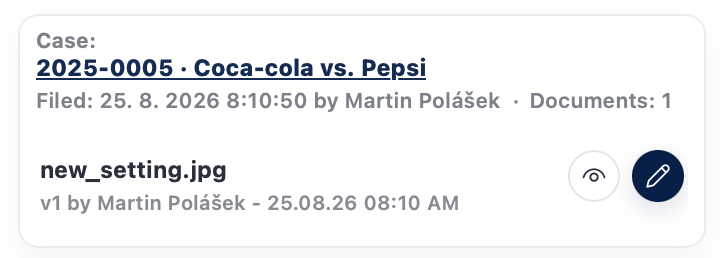
The filing summary shows the document under the name you gave it.
- The extension cannot be changed, so a
.pdfstays a.pdf. - An empty name changes nothing. The attachment keeps its original name.
- Two attachments with the same name cannot be renamed. Their pencil icon is disabled and shows “An attachment sharing its name with another one cannot be renamed”.
- The email in Outlook is untouched. Only the copy in SingleCase gets the new name.
Choosing the destination folder
Below the attachments is a Folder row with two options:
- Default (preselected): the attachments go to the case’s default folder for incoming mail, Correspondence → Incoming.
- Custom: you choose any folder in the case.
With Custom, the case’s folders appear below the row. Click a folder to open it. The folder you are in is the selected one: it is shown at the top of the list with a checkmark (✓). Folders that contain subfolders show an arrow (→). To go one level up, click the selected folder at the top of the list (↵).
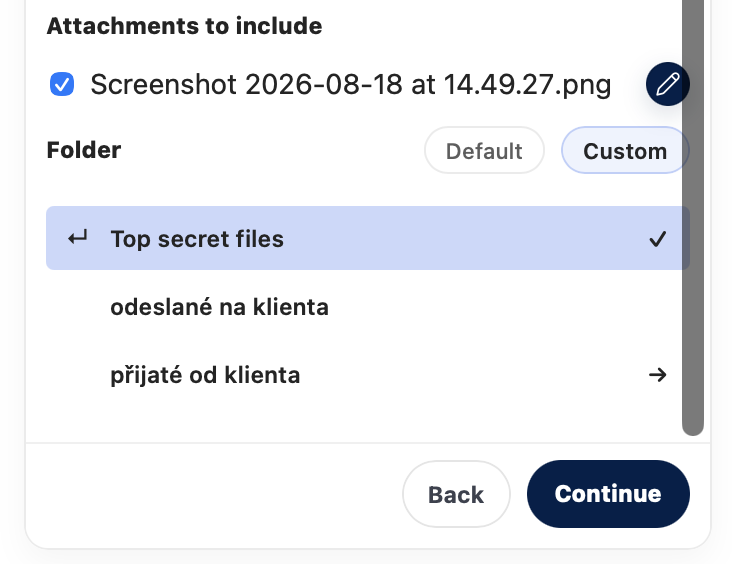
The checkmark shows the folder the attachments will be saved to.
.eml) always goes to the Case Mailbox. You only see folders you are allowed to open in SingleCase.After filing: open the case and documents
Once filing is complete the panel shows a summary:
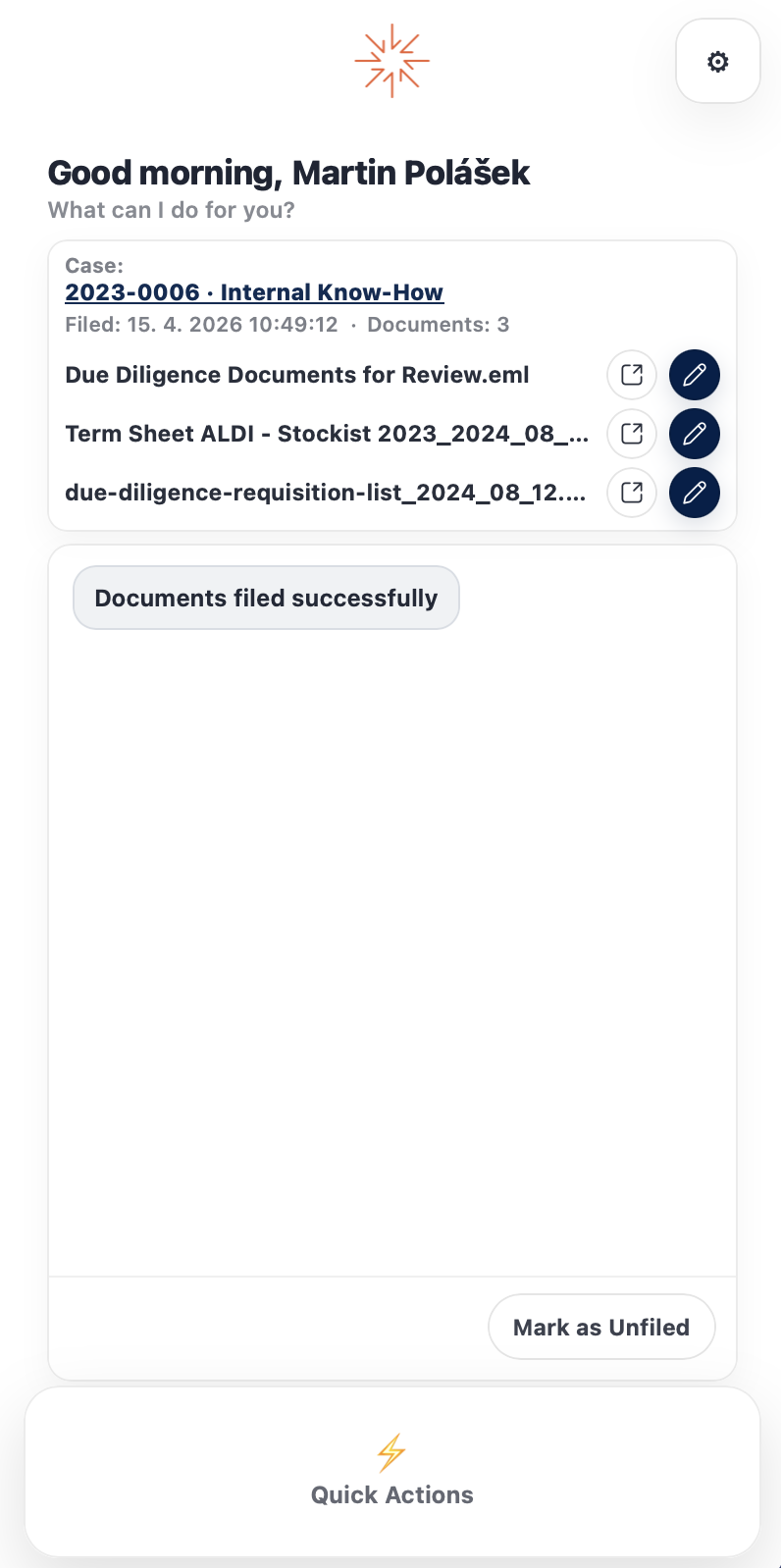
The summary view after a successful filing.
- The case name (click it to open the case in SingleCase)
- The date and time it was filed
- The number of documents filed
- Each filed document listed individually
From the summary you can also manage each document:
| Action | What it does |
|---|---|
| Open case in SingleCase | Opens the case the email was filed to in SingleCase |
| Open document in SingleCase | Opens the filed document directly in SingleCase |
| Edit via SingleCase | Opens the document in SingleCase for editing |
Where to find everything in SingleCase
Once filed, you can find the email and attachments directly in the case in SingleCase.
The email — Case Mailbox
The filed email appears in the Case Mailbox of the case.

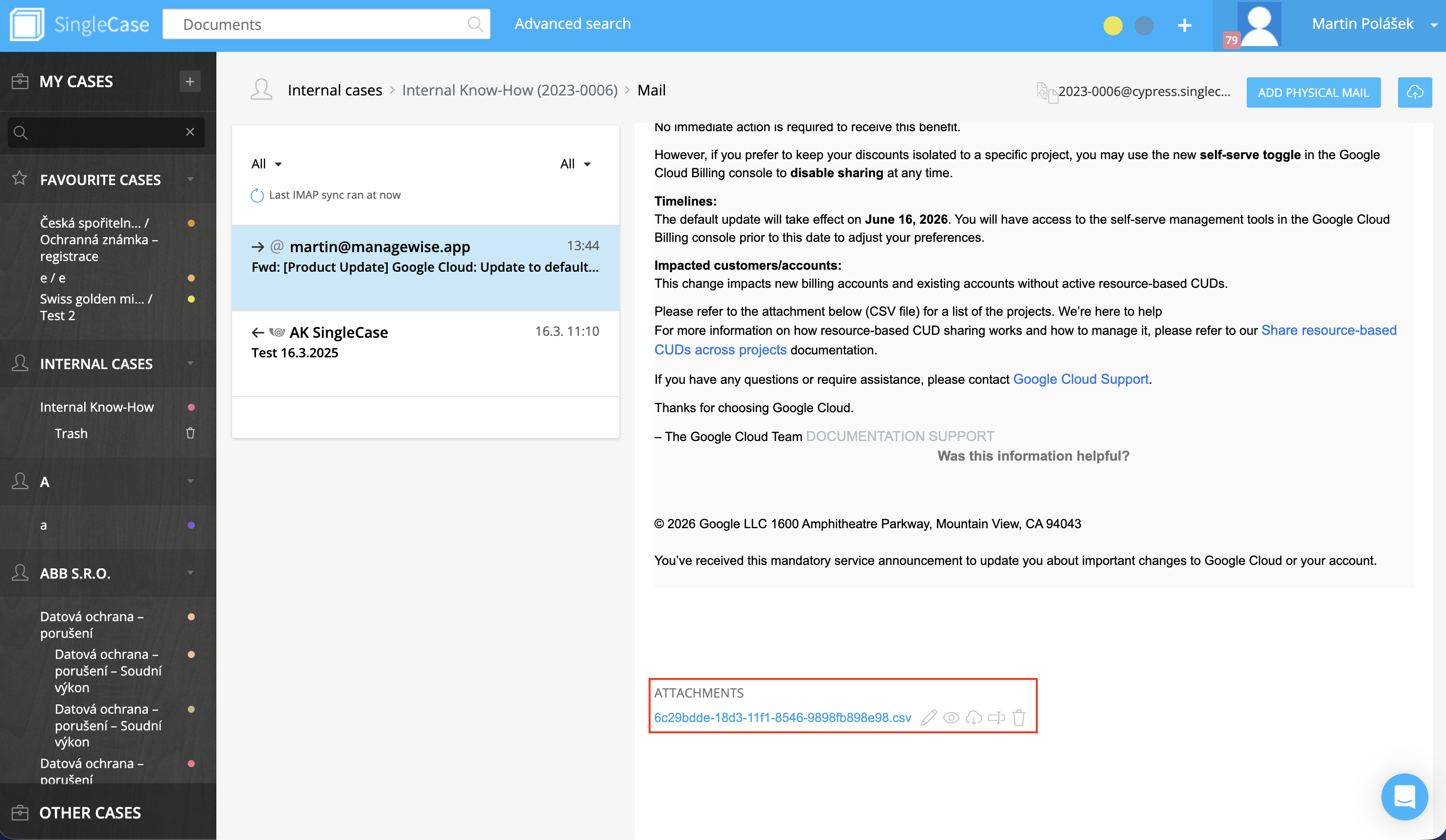
The filed email is visible in the Case Mailbox.
Attachments — Documents
Any attachments you selected are stored in the Documents section of the case. With the default folder setting they land in the case Inbox, under Correspondence → Incoming. If you picked a different folder before filing (see Choosing the destination folder), you will find them in that folder instead.
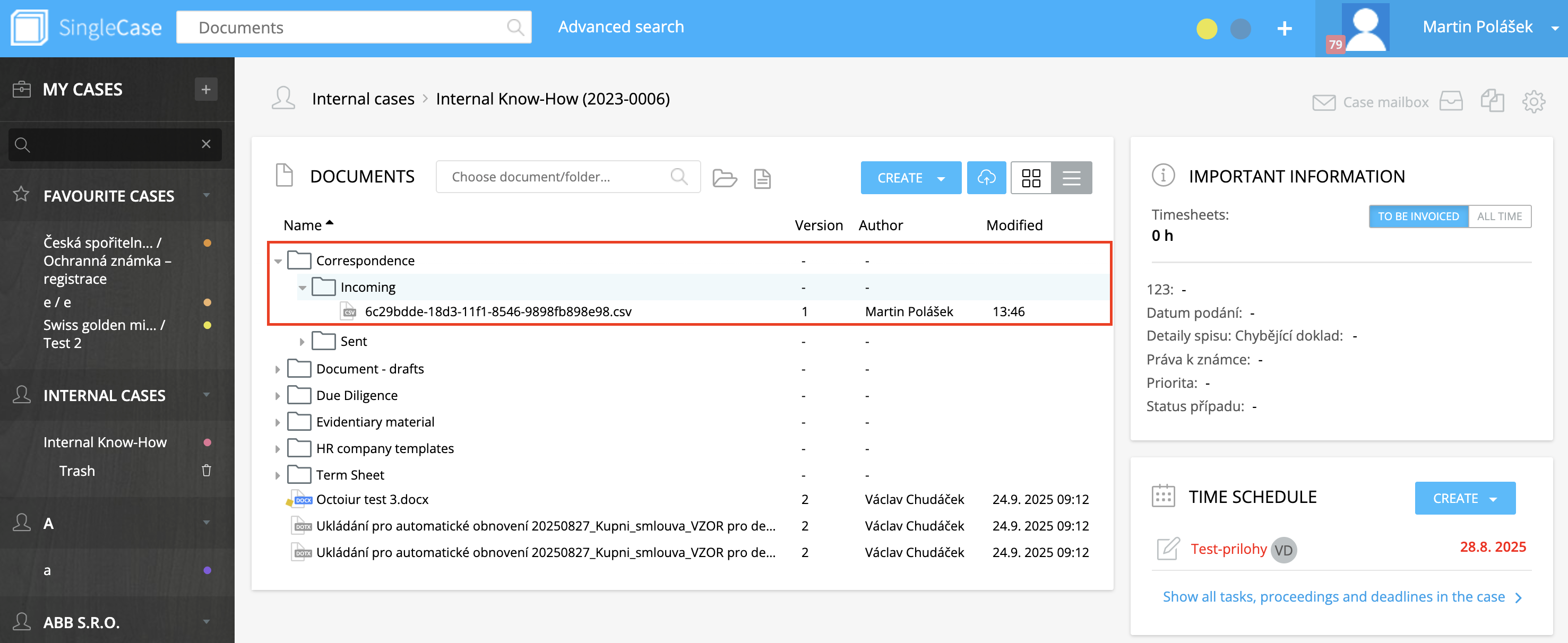 Incoming" class="manual-img" style="max-width: 100%;">
Filed attachments appear in Documents under Correspondence → Incoming.
Already filed, skipped or removed emails
When you open an email, the add-in first checks its status in SingleCase. Depending on the result, the panel shows one of the following.
Already filed
The panel shows the case and the filed documents. This works the same whether you filed the email yourself, a colleague filed it, or it was filed on send. The email also gets the SC: Filed label in Outlook. See After filing for what you can do from here.
Not filed yet
The panel asks “This email isn’t filed yet. Do you want me to file it?”
- Yes, file it opens the case selection. See File an email.
- No leaves the email unfiled. The panel confirms “Got it. I won’t file this email now.” and does not ask about this email again until the panel is reopened.
Internal emails
If the sender and all recipients are from your organisation’s email domain (including its subdomains), the panel asks “This looks like an internal email. Mark as Skipped?” This detection is automatic; there is no setting for it.
- Yes marks the email as skipped. It gets the SC: Skipped label and the panel says “Marked as Skipped. You can still file it manually.”
- File anyway opens the case selection, the same as for any other email.
Skipped emails
When you open an email marked as skipped, the panel says “This email has been marked as skipped. You can still file it manually.” Click File manually to file it to a case.
Removed from SingleCase
If the email was filed but its documents were later deleted in SingleCase, the panel says “This email was removed from SingleCase. Do you want to file it again?” Click Yes, file it to file it again, or No to leave it.
Filing the same email again
If you file an email that is already filed, the panel says “This email was already filed. Click again to file anyway.” Click again only if you really want to file it a second time.
Move filed emails to case folders
Filed emails normally stay in your inbox with only the SC: Filed label. If you prefer a clean inbox, the add-in can move each email you file into a folder for its case, right after filing.
Turning it on
Open Settings (the gear icon in the add-in panel).
In the Email organization section, switch on Move filed emails to a folder in Outlook. The helper text below it reads: “After you file an email in SingleCase, the plugin automatically moves it to the SingleCase - Plugin → [case name] folder in your Outlook.”
The setting is saved for you and stays on when you close and reopen the add-in. Switching it off again stops future moves; emails already moved stay in their case folders.
How the folders are organised
The add-in creates a folder named SingleCase - Plugin at the top level of your mailbox, next to your Inbox. Inside it there is one folder per case, named case number · case name:
SingleCase - Plugin
  2024-0003 · Environmental protection
  2025-0010 · Smith vs. Jones
  2026-1348 · Flat-fee retainer
- Both folders are created automatically: SingleCase - Plugin the first time an email is moved, and a case folder the first time you file an email to that case.
- If a case has no case number, the folder is named after the case name only.
- The characters
/,\and:in case names are replaced with a hyphen, and very long names are shortened. - The folders live in your mailbox, so you see them in Outlook on all your devices.
Which emails are moved
- Only emails you file with the add-in, at the moment you file them. No other email in your mailbox is ever touched.
- The email is moved, not copied. It disappears from the folder it was in and appears in the case folder, still with the SC: Filed label.
- Emails filed before you turned the setting on stay where they are. Nothing is moved retroactively.
If the email cannot be moved
Filing always comes first. If the move fails, the email is still filed in SingleCase, it stays in its original folder, and the add-in lets you know. You can then move it yourself.
Renaming, moving or deleting the folders
The add-in looks for a case folder by its name inside SingleCase - Plugin (upper and lower case do not matter). If you rename a case folder, move it somewhere else or delete it, the next email you file to that case creates a new folder with the standard name. The same applies to the SingleCase - Plugin folder itself.
File on Send
With File on Send, you choose the case while you are writing the email. After you click Send, the add-in files the sent email to that case for you, either automatically or after you confirm it, depending on your settings. There is no need to go to Sent Items afterwards.
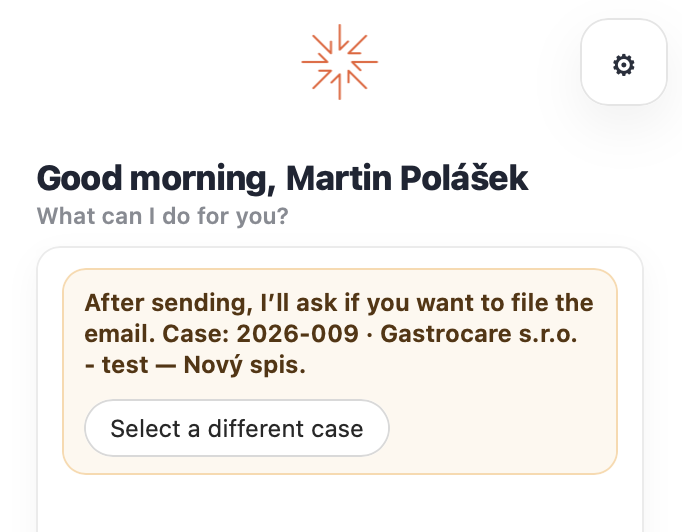
While you write, the panel shows the case and what happens after you click Send.
Choose how File on Send behaves
Open Settings in the add-in (see All settings explained) and choose one of the options under File on send:
| Option | While you write | After you click Send |
|---|---|---|
| Warn each time (default) | The panel is highlighted in yellow and says “After sending, I’ll ask if you want to file the email.” | The email sends normally. The next time you open the add-in panel, it asks “Email sent. Do you want to file it now?” and shows the case. Click File now to file it, or Skip to leave it unfiled. Nothing is filed until you click File now. |
| Always file | The panel says “When you click Send, I’ll file this email automatically.” and turns green once a case is selected. | The email is filed to the selected case automatically, in the background. No confirmation is needed. |
| Off | The panel says “Auto filing is off.” Click Turn on warnings to switch the setting to Warn each time. | Nothing is filed. You can file the email manually from Sent Items (see File an email). |
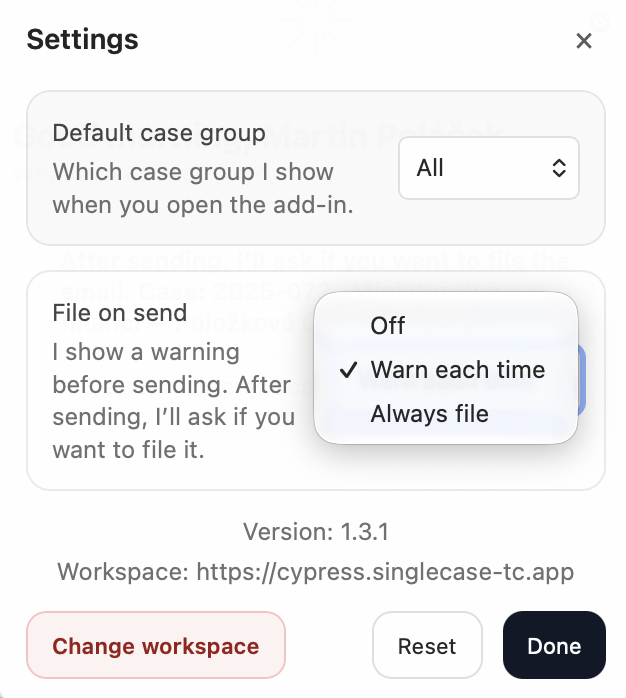
Choose the behaviour under File on send in Settings.
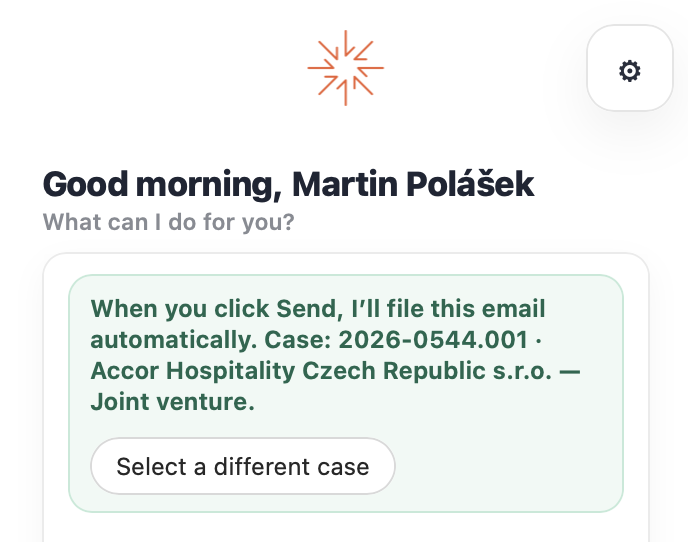
With Always file, the panel turns green once a case is selected.
How to use it
-
Open a new email or a reply and click the SingleCase button in the ribbon to open the panel. The case has to be selected in the panel before you send. If you send without opening the panel, nothing is filed on send and you can file the email later from Sent Items.
-
Add a recipient. Until there is at least one recipient in To or Cc, the panel shows “Add a recipient (To / Cc)”. If you send the email to a case’s SingleCase email address, the case is recognised straight away.
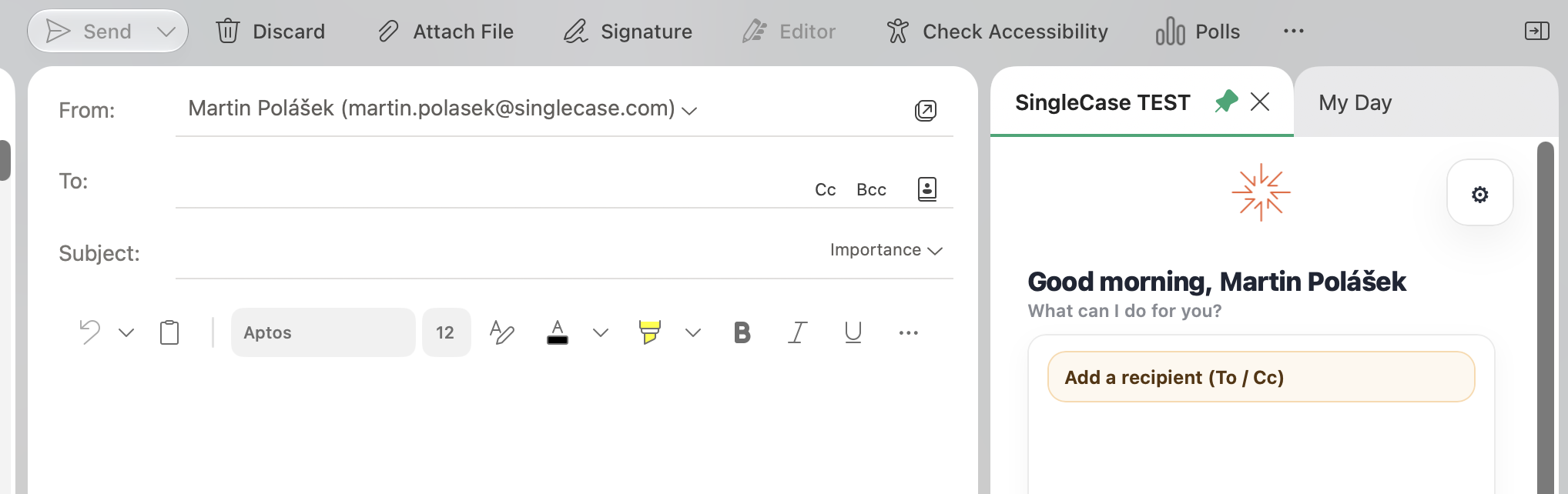
Until the email has a recipient, the panel asks you to add one.
-
Check the case. The panel names the case the email will be filed to. If it is not the right one, click Select a different case and pick another from the list or search for it. If the add-in has no suggestion, the panel says “Select a case for this draft.” Click Select a case and choose one.
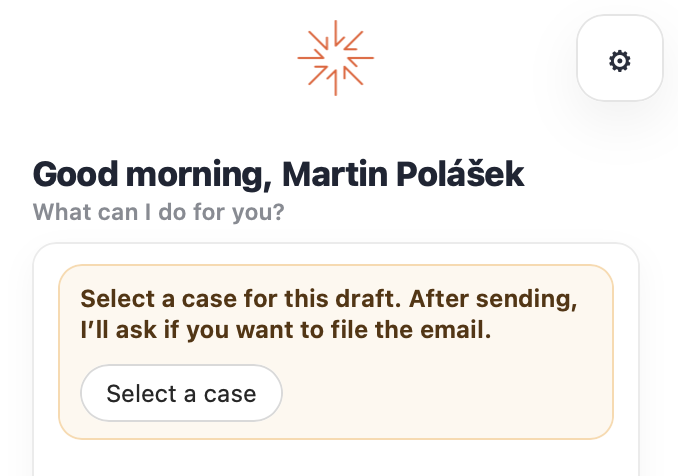
No suggestion yet: click Select a case.
-
Keep writing or close the panel. The selected case stays with this draft until you send it.
-
Click Send. The email always goes out. With Always file, it is filed in the background. With Warn each time, the add-in asks you about it the next time you open the panel.
How the add-in picks the case
While you write, the add-in decides which case to prepare in this order:
- A case you chose yourself always wins.
- Case email address in the recipients: if you send the email to a case’s SingleCase email address, that case is selected.
- Recognised automatically: when the email belongs to a thread that is already filed, the subject or body contains the case number, or a recipient’s address matches the case exactly, the case is selected and the panel shows “Suggested case: …”.
- Recipients you have filed with before: if you previously filed emails with the same people to a case, that case is offered in the list under Select a different case. It is not selected for you.
In the list under Select a different case, each suggestion shows why it was offered, for example “Same email thread”, “Case number in the email”, “You often file this sender here” or “Recently used case”.
More about how cases are ranked in Case suggestions, and about case addresses in Send to a case email address.
What gets filed?
The sent email is saved as a document to the root of the selected case’s documents. Attachment selection, the destination folder and renaming (see Choose attachments, folder and name) are not available with File on Send. If you need them, do not select a case in the draft, and file the email manually from Sent Items after sending (see File an email).
If the panel says “After sending, you can file it from the Sent folder.”, the add-in could not prepare this draft for filing. The email sends normally, but nothing is filed on send; file it manually from Sent Items.
File on Send vs. manual filing
| Situation | Recommended approach |
|---|---|
| You know which case the email belongs to before sending | File on Send: select the case before sending and save a step |
| Replying to an email already filed in a case | File on Send: the add-in selects the same case automatically |
| You want to choose attachments, the folder or the document name | Manual filing from Sent Items after sending (see File an email) |
Send to a case email address
Every case in SingleCase has its own email address in the format CASE-ID@yourfirm.singlecase.app. When you add this address to the recipients of an email you are writing, usually as Bcc so the other recipients do not see it, the add-in recognises the case straight away.
- The case is selected in the panel without any searching, and the panel names it.
- A case address is treated as certain. It is used ahead of any suggestion; only a case you pick yourself takes priority.
- What happens after you click Send depends on your File on Send setting.
After sending: confirmations and errors
The outcome is shown at the top of the add-in panel the next time you open it, whichever email you have selected:
- Filed: “Sent message filed to [case].” The message stays until you close it. Click Change case to open the case in SingleCase if the email went to the wrong case; the add-in cannot move a filed email to another case.
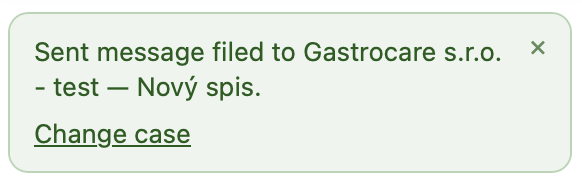
The confirmation stays until you close it.
- Already filed elsewhere: if the same email is already filed in a different case, it is not filed again and the message names the case where it already is.
- Failed: “Filing failed. Reopen the add-in or file manually.” This appears when filing cannot succeed, for example when you do not have permission to file to the case or your Microsoft sign-in has expired. Temporary problems, such as a network outage, are not reported; the add-in simply tries again the next time you open the panel.
- Waiting for confirmation (Warn each time): if you do not answer the question, it comes back every time you open the panel for 24 hours. After that, the email stays unfiled. If you sent several emails, the add-in asks about them one at a time, oldest first.
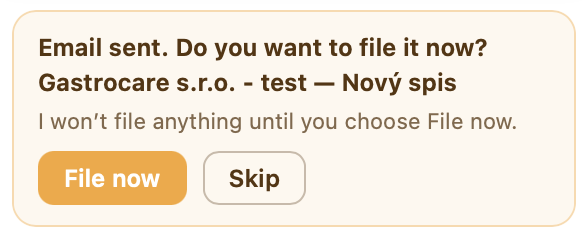
With Warn each time, the add-in asks before filing.
Finding a case
The case list has two views, switched with the buttons at the top: All and Favourites. Which one opens first is set in Settings (Default case group, All by default).
Searching for a case
In All, the add-in shows its suggested cases and a search box below them. Type at least 3 characters; results appear as you type, and more load as you scroll down. Each result shows the case name, the case number and the client. Press Enter to pick the first result, or Esc to clear the search.
You do not need to type full names; partial terms work, and you can combine them:
| What you type | Example | Result |
|---|---|---|
| Client name (or part of it) | nextpresso | Cases of that client |
| Case name (or part of it) | magenta | Cases with that name |
| Case number | 2025-100 | That case |
| Client + case name | nextpresso magenta | That case under that client |
| Partial terms combined | next mag | Matching client and case |
Favourites
Favourites lists the cases you starred in SingleCase. Suggestions and the search box are only shown in All; in Favourites you pick a case from the list.
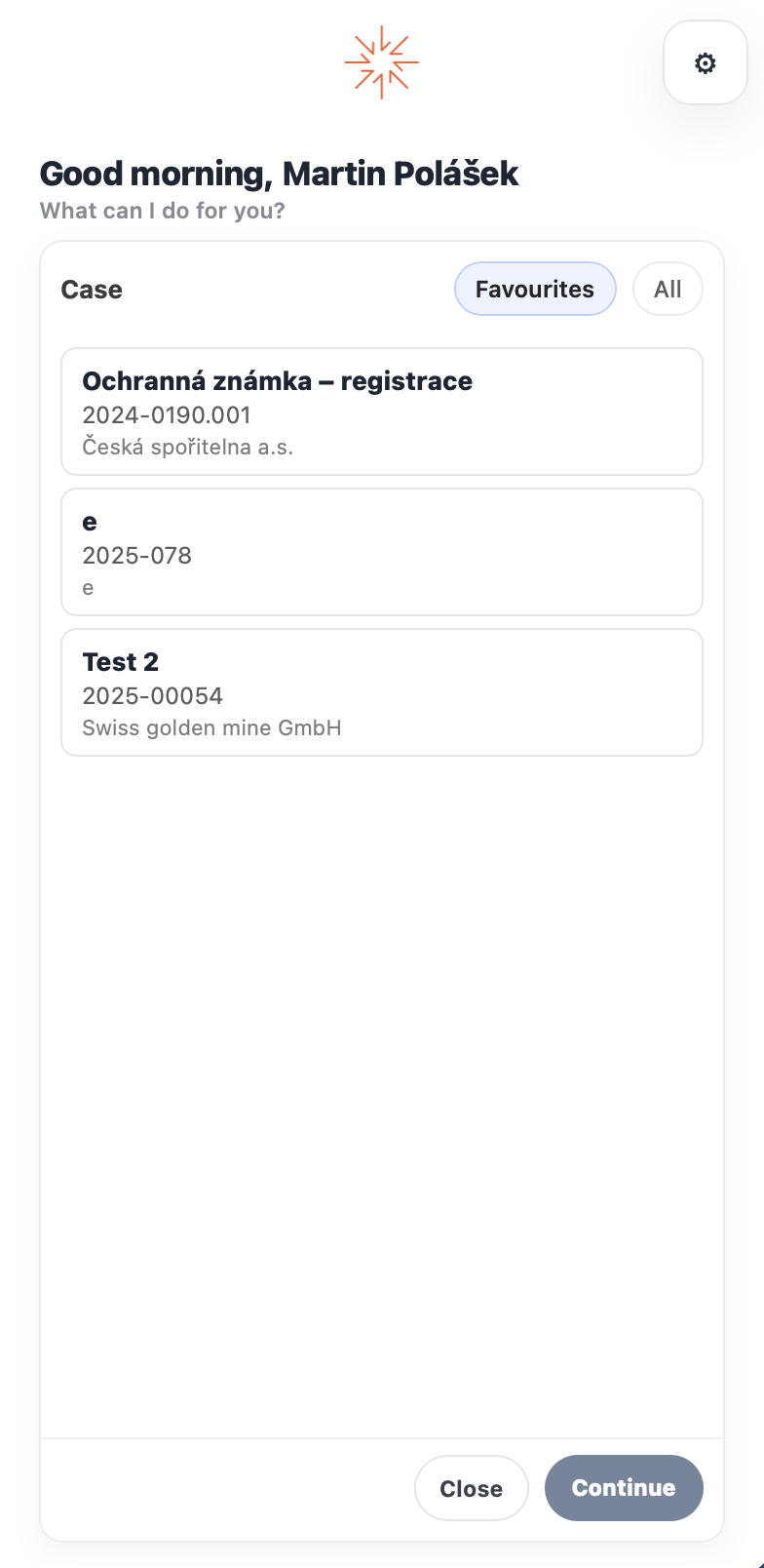
Switch between All and Favourites with the buttons at the top of the list.
Case suggestions
When you file an email you have open, the add-in asks SingleCase which cases the email most likely belongs to, and shows up to three suggestions above the search box (in All).
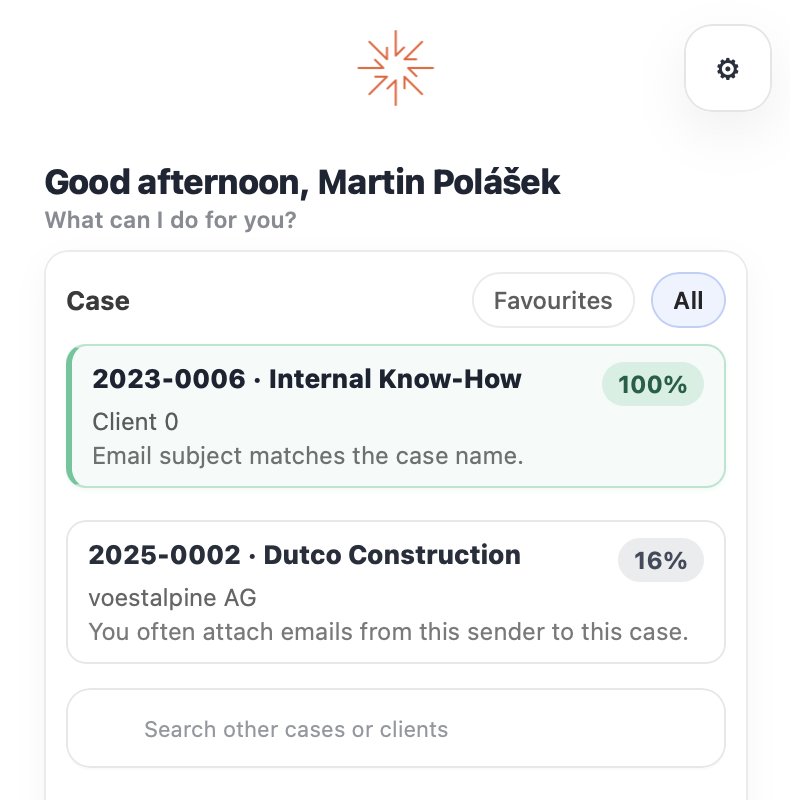
Suggested cases with their confidence and the reason they were suggested.
What a suggestion shows
- The case name, and below it the case number and the client.
- A confidence percentage.
- The main reason for the suggestion: “Same email thread”, “Case number in the email”, “You often file this sender here”, “Emails from this organisation are usually filed here”, “Linked contact”, “Recently used case” or “Suggested match”.
What the add-in looks at
SingleCase combines several clues. Each clue adds to a case’s score, so a case that matches several of them ranks higher. From strongest to weakest:
Same email thread. Another email from this conversation is already filed to the case.
SingleCase case number in the subject, the first 5,000 characters of the body, or an attachment name. It has to match as a whole number, not as part of a longer one.
Court file number in the same places. Separators do not matter, so
23-C-159,23/C/159and23 C 159all match.Your history with these addresses. How often and how recently you filed emails with the sender and recipients to the case.
The organisation’s history. Emails from the same email domain filed to the case. This counts far less than an exact address, and less the more cases the domain is spread across. Your firm’s own domain and public domains such as gmail.com are ignored.
Linked contacts. A participant matches an active contact linked to the case in SingleCase. If the contact is linked to several cases, the boost is split between them, so a contact on many cases says little about any one of them. A contact linked to just one case ranks above weak sender history, but established history (frequent, recent filing) still wins.
Recently used cases. Cases you filed to in the last 14 days. This only decides between cases that other clues already surfaced.
A case or court number in the email always ranks above filing history alone.
The confidence percentage
The percentage reflects both how strong the clues are and how far the case is ahead of the next one. If two cases have equally strong clues, both get a lower percentage. A single clue, even an exact case number, does not reach 100%. Cases below 10% are not shown.
Recommended case
When the top case is clearly ahead, the add-in marks it as recommended with a green outline, and you can click Continue right away. Only the strong clues count towards this: the same thread, a case or court number, or your history with these addresses. The organisation’s history and linked contacts never make a case recommended on their own. Nothing is filed until you click Continue, and you can always pick a different case.
Suggestions are personal
Suggestions are based on the cases you have access to and on your own filing history, so a colleague can see different suggestions for the same email. Every email you file improves later suggestions for the same people and organisations.
Filing status in Outlook
The add-in uses Outlook categories to show the filing status of each email at a glance. These labels appear in your inbox, sent items, and any folder where the email lives, and sync across all your devices.
| Label | Meaning |
|---|---|
| SC: Filed | Email has been successfully filed in SingleCase |
| SC: Skipped | Email is marked as not yet filed to any case in SingleCase |
All settings explained
To open Settings, click the gear icon (⚙) in the top-right corner of the add-in panel. Close it with Done or the × in the top-right corner.
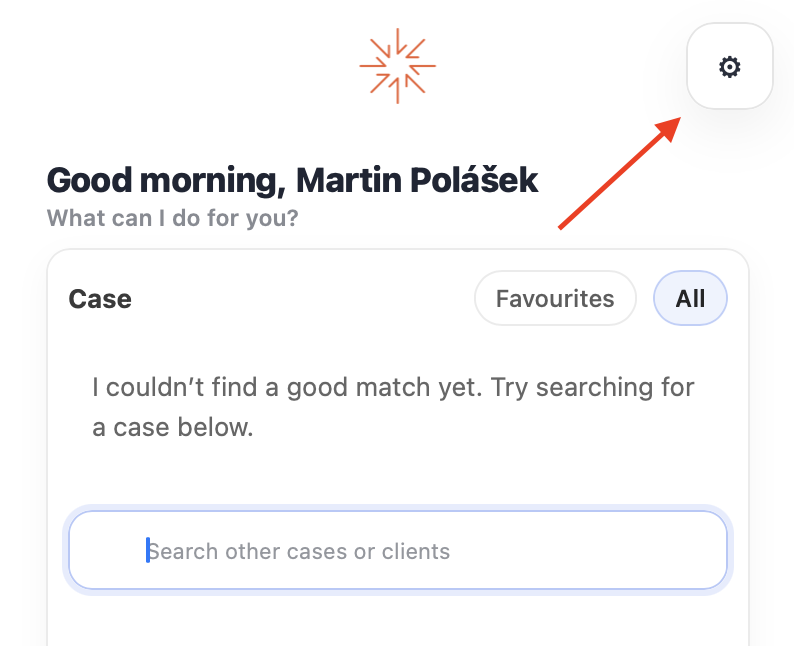
Click the gear icon to open Settings.
| Setting | Options | What it does | Used in |
|---|---|---|---|
| Default case group | All (default), Favourites | Which view the case list opens in. Favourites are the cases you starred in SingleCase. Suggestions and search are only in All. See Finding a case. | Both modes |
| File on send | Warn each time (default), Always file, Off | Whether a sent email is filed automatically, after you confirm, or not at all. See File on Send. | Compose mode |
Settings in the add-in.
At the bottom of Settings:
- Version and Workspace show the add-in version and the workspace you are connected to. Include both when you contact support.
- Change workspace connects the add-in to a different SingleCase workspace. See Sign in and choose your workspace.
- Reset restores the default settings.
FAQ
Filing emails
How do I know if an email has already been filed?
Open the email and click the SingleCase button. If the email has been filed, the panel immediately shows the case name, the filing date, and links to the filed documents. A green SC: Filed label in your inbox also indicates the email is in SingleCase.
Can I file the same email twice?
The add-in warns you first: “This email was already filed. Click again to file anyway.” It files the email a second time only if you click again. See Already filed, skipped or removed emails.
What happens if I file an email and then forward it?
Forwarding creates a brand new email. The forwarded copy is not automatically filed. You need to open the add-in for the forwarded copy and file it separately if needed.
I excluded some attachments. Does that change the original email?
No. The add-in does not change the email or its attachments in Outlook; it only adds the SC: Filed category. Only the files you selected are uploaded to SingleCase.
I accidentally filed the wrong email. What do I do?
Filing cannot be undone from the add-in. To remove a wrongly filed document, go to SingleCase → Cases → Documents, find the document, and delete it from there. The email in Outlook will remain completely unchanged.
Why does the email category appear in English?
The category names SC: Filed and SC: Skipped are the same in every language, regardless of your Outlook language setting.
Cases and suggestions
I can't see the case I need among the suggestions. What do I do?
Suggestions show at most three cases; they are a shortcut, not a limit. Use the search box below the suggestions (in All) and search by client name, case name or case number. Pressing Enter picks the first result.
If the search finds nothing either, check these in order:
- Try a shorter fragment. Partial terms work, but a long name with a typo will not.
- Check the workspace. If your firm has more than one SingleCase workspace, you may be signed into a different one. See Sign in and choose your workspace.
- Check that you are on the case. Search finds cases where you are the responsible person or a member. Ask the case’s responsible person to add you in SingleCase.
- Newly created case? Reload the panel (right-click inside it → Reload) and search again.
The add-in recommended the wrong case. What do I do?
A recommended case is only a proposal. Nothing is filed until you click Continue, so simply pick a different case or search for one. The add-in recommends a case when it is clearly ahead based on the same thread, a case or court number in the email, or your history with these addresses. A number can legitimately appear in an email that belongs elsewhere, for example in a forwarded thread.
Filing to the correct case improves later suggestions for the same people. See Case suggestions.
Why do I get no suggestions at all for some emails?
That is normal, and the search box is always available. Suggestions stay empty when there is nothing to go on:
- No other email from the thread is filed, and there is no case or court number in the subject, the first 5,000 characters of the body or the attachment names.
- You have not filed emails with these people or this organisation before. Public domains such as gmail.com and your firm’s own domain do not count as organisation history.
- Every candidate scored below 10%, the minimum the add-in shows.
Sign-in, updates and availability
Will I be signed out automatically?
Generally no. The add-in keeps you signed in and refreshes your session automatically in the background, so you do not need to log in each time you open Outlook. If you do get signed out, for example after a password change, sign in again on the welcome screen. To connect to a different workspace, use Change workspace in Settings.
How do I get the latest version of the add-in?
The add-in updates automatically. Because it runs as a web application inside Outlook, your administrator publishes new versions to Microsoft 365 and you always receive the latest release the next time you open Outlook. You do not need to install anything manually.
If you need to pick up a new version immediately without restarting Outlook, you can force-reload the add-in taskpane:
- Outlook for Mac: right-click anywhere inside the SingleCase taskpane → Reload.
- Outlook for Windows: right-click anywhere inside the SingleCase taskpane → Reload.
- Outlook on the Web (Mac): click inside the taskpane and press Cmd+Shift+R.
- Outlook on the Web (Windows): click inside the taskpane and press Ctrl+Shift+R.
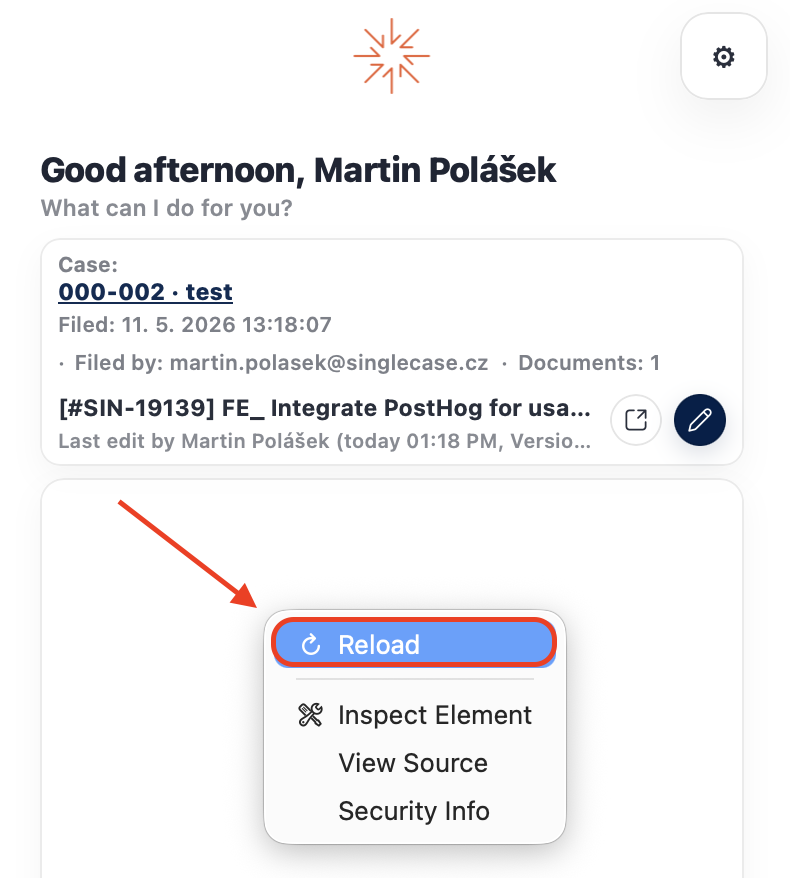
Right-click inside the taskpane and choose Reload to pick up the latest version immediately.
You can check the installed version via Outlook: My Add-ins:
- Outlook on the Web: open any email → click the three-dot menu (⋯) → Get Add-ins → My add-ins. Find SingleCase in the list. The version is shown below the add-in name.
- Outlook for Mac: Tools menu → Get Add-ins → My add-ins tab.
- Outlook for Windows: File → Manage Add-ins (opens a browser page) → My add-ins tab.
When reporting an issue, include the version number from either location so your IT administrator or SingleCase support can assist you.
Can I use the add-in on my phone?
Not yet. Mobile support (iOS & Android) is coming soon. You'll be notified when it's available.
Does the add-in work offline?
No. The add-in needs an internet connection to communicate with SingleCase. If you are offline, you will see a connection error. Once you are back online, file the email again.
Troubleshooting
I can't sign in — Microsoft says my account does not exist in the SingleCase tenant
You click sign in and Microsoft's Pick an account window appears with a message in red:
The selected user account does not exist in tenant 'SingleCase' and cannot access the application in that tenant. The account needs to be added as an external user in the tenant first. Please use a different account.
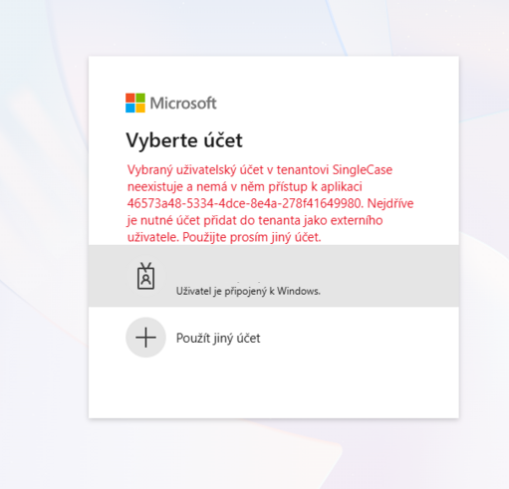
The sign-in stops here. Choosing the same account again just repeats the message.
This is not a password problem and it is not something you can fix from Outlook. The add-in signs you in through Microsoft, so your SingleCase profile has to know which Microsoft account belongs to you. Until that link exists, Microsoft has nothing to grant access to and shows this message. The fix is to create (or re-create) the link in SingleCase:
Open your SingleCase workspace in a browser and sign in the way you normally do.
Go to My profile and find the Microsoft account connection section.
-
If no account is connected — connect it now. Sign in with the same Microsoft account you use in Outlook and confirm the permission prompt. This alone resolves the error in most cases.
-
If an account is already connected — cancel the existing connection and connect again. A connection can go stale, for example after an email address change, a licence change, or a migration between Microsoft tenants, and a stale link produces exactly the same error as a missing one.
Go back to Outlook, close and reopen the SingleCase panel, and sign in again.
The taskpane is blank or shows a loading spinner indefinitely
Close the taskpane and reopen it from the ribbon.
If that does not help, restart Outlook.
On Outlook on the Web, try refreshing the browser page.
If the problem persists, contact your IT administrator. The add-in may need to be re-published.
“I couldn’t find this workspace” when signing in
Check the workspace address. The correct format is yourfirm.singlecase.app. If you are unsure, ask your SingleCase administrator for the exact address.
Filed categories (green/gray labels) are not appearing
Categories require a specific minimum version of Outlook. Make sure your Outlook is fully up to date. In Outlook on the Web, categories may take a few seconds to appear after filing.
The case I am looking for is not in the list
- Switch from Favourites to All. The search box is only available in All.
- Search by the case number (e.g.
2023-0001). - Search only finds cases where you are the responsible person or a member. Ask the case’s responsible person to add you in SingleCase.
- A case created a moment ago may need a reload: right-click inside the panel and choose Reload.
"Filing failed" error
Filing failures are usually caused by a brief network interruption or a temporary server issue. Try again after a few seconds. If the error persists, check that you can open your SingleCase workspace in a browser. If the workspace is accessible but filing still fails, contact SingleCase support.
What's new
Coming in version 1.4
- Move filed emails to case folders. An optional setting that moves each filed email into a SingleCase - Plugin → case folder in Outlook. See Move filed emails to case folders.
Version 1.3.1.0 · October 2026
- New: File on Send. Choose the case while you write an email, and the add-in files it when you click Send, automatically or after you confirm. See File on Send.
Install and update the add-in
Deploy SingleCase to your entire organization — or to specific users or groups. Requires a Global Administrator or Application Administrator account. Users receive the add-in automatically in their Outlook ribbon with no action on their side.
-
Sign in to the Microsoft 365 Admin Center at admin.microsoft.com.
-
In the left sidebar, go to Settings → Integrated apps.
-
Click Upload custom apps to deploy via manifest file, or search for SingleCase in the App Store and select it.
- If uploading a manifest: select Office Add-in as the app type, then upload the manifest file.
-
In the Add users step, choose the deployment scope:
- Just me — your account only (useful for testing)
- Entire organization — all users in your M365 tenant
- Specific users / groups — a defined list or security group
-
Click Deploy and confirm. Propagation can take up to 24 hours — in practice we typically see it within 12 hours.
-
The SingleCase button appears automatically in each assigned user's Outlook ribbon on their next launch.
Full step-by-step deployment guide with screenshots →
Updating the Manifest
If SingleCase provides a new manifest file (for example when switching from Trial to Production, or when the add-in URL changes), you replace it in the Admin Center without removing the existing deployment. Always-up-to-date manifest files are available in the IT Administrator Guide → Manifest files ↗.
-
Go to Settings → Integrated apps in the Microsoft 365 Admin Center and select the SingleCase add-in from the list. In the panel that opens, under Actions, click Update add-in.
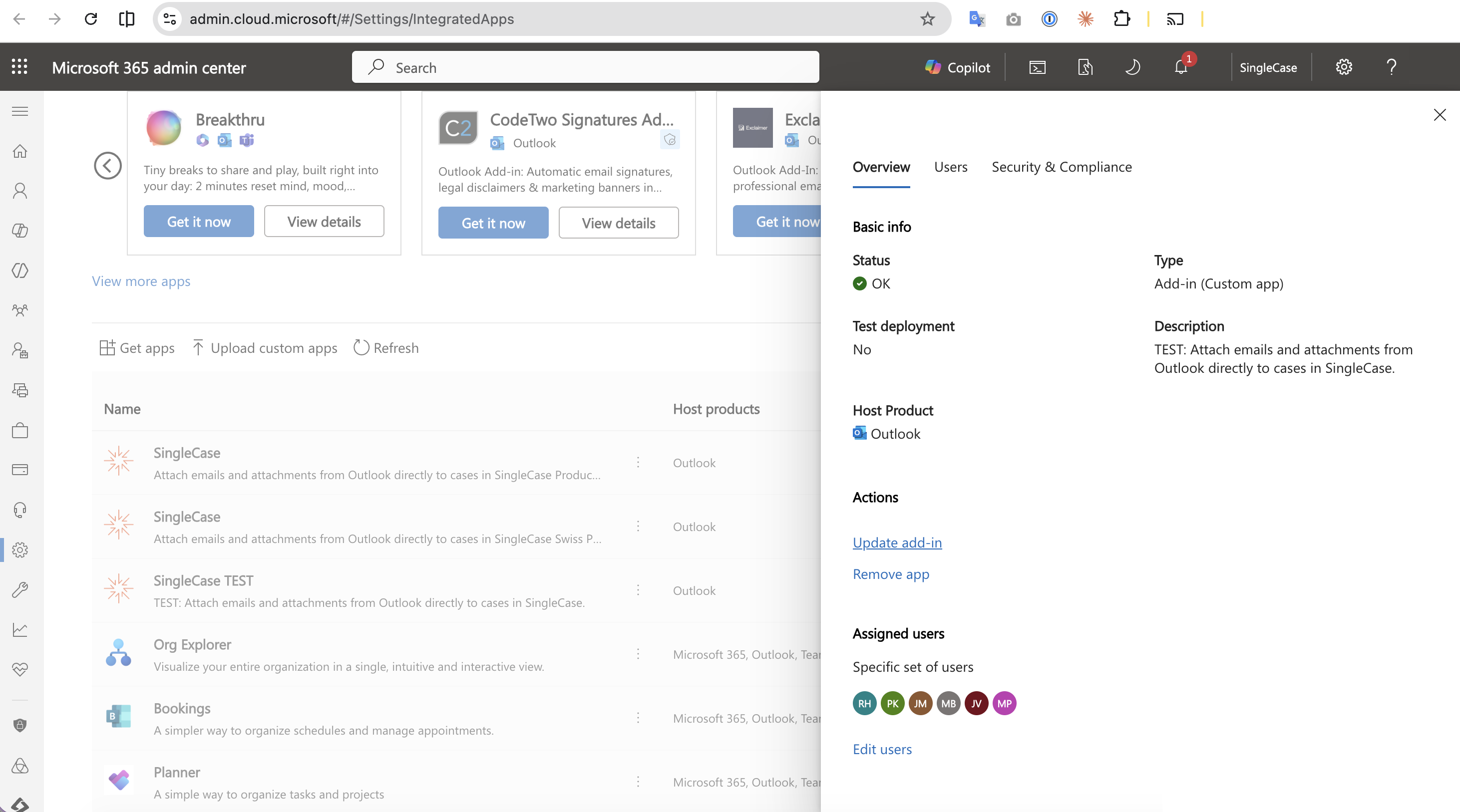
The add-in detail panel — click Update add-in under Actions.
-
On the Update file screen, keep Upload manifest file (.xml) from device selected, click Choose File and pick the new manifest. Wait for Manifest file validated to appear, then click Next.
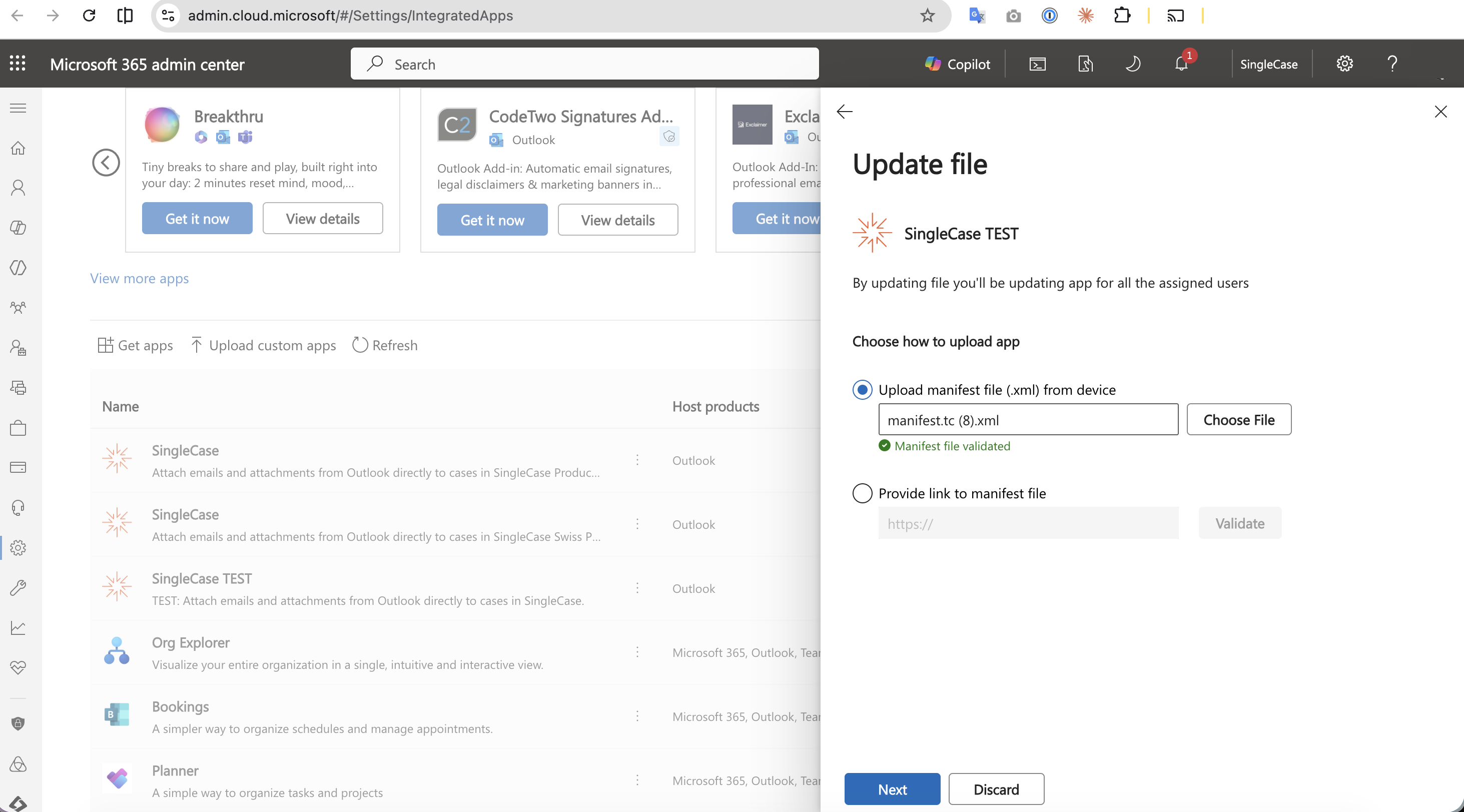
Upload the new manifest from your device — the green Manifest file validated confirmation must appear before you continue.
-
Review the Updates screen, which lists the app permissions and capabilities requested by the new manifest, then click Accept and update.
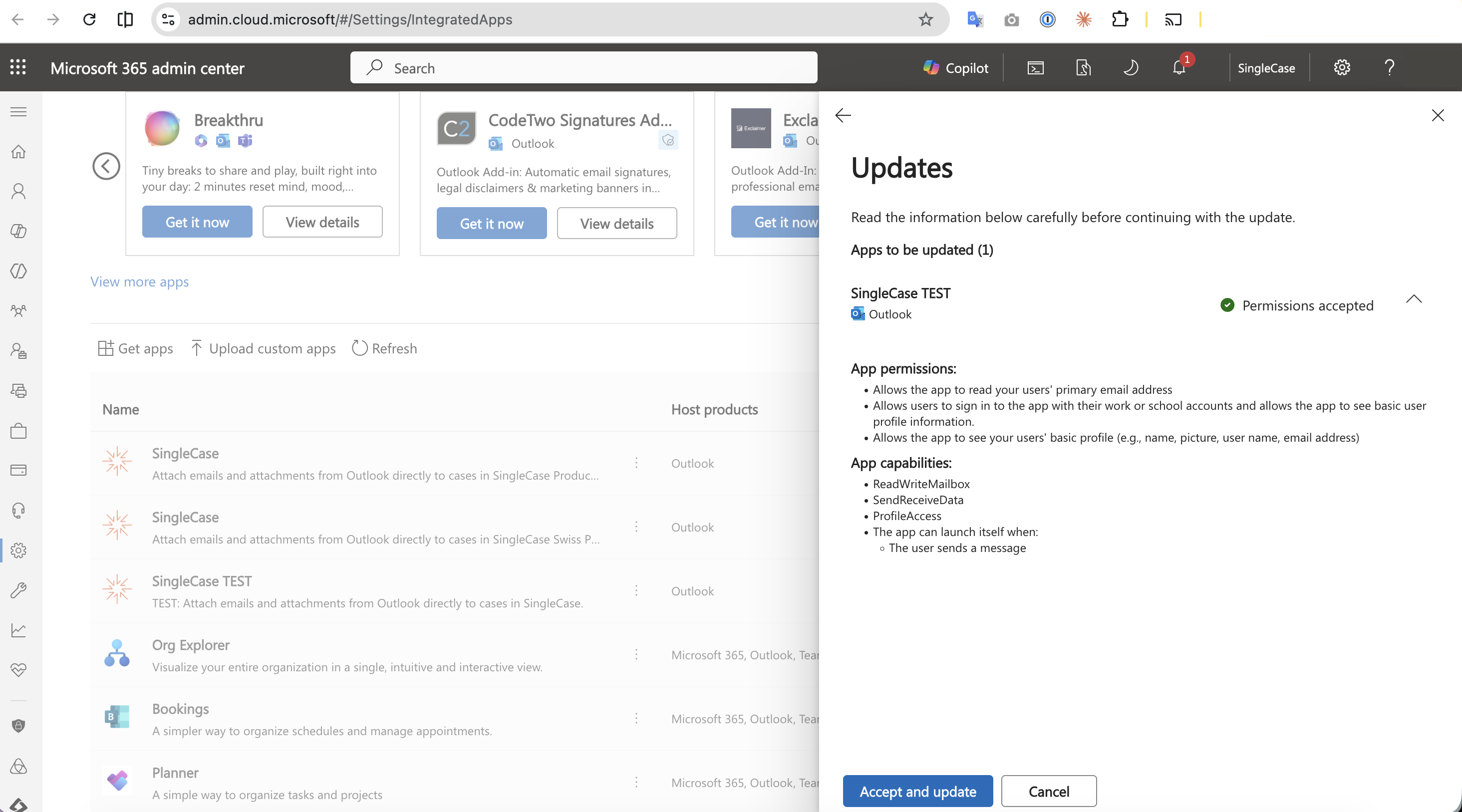
Review the requested permissions and capabilities, then Accept and update.
-
The update runs. Update in progress… is shown while it completes — you can close the panel and it will continue in the background.
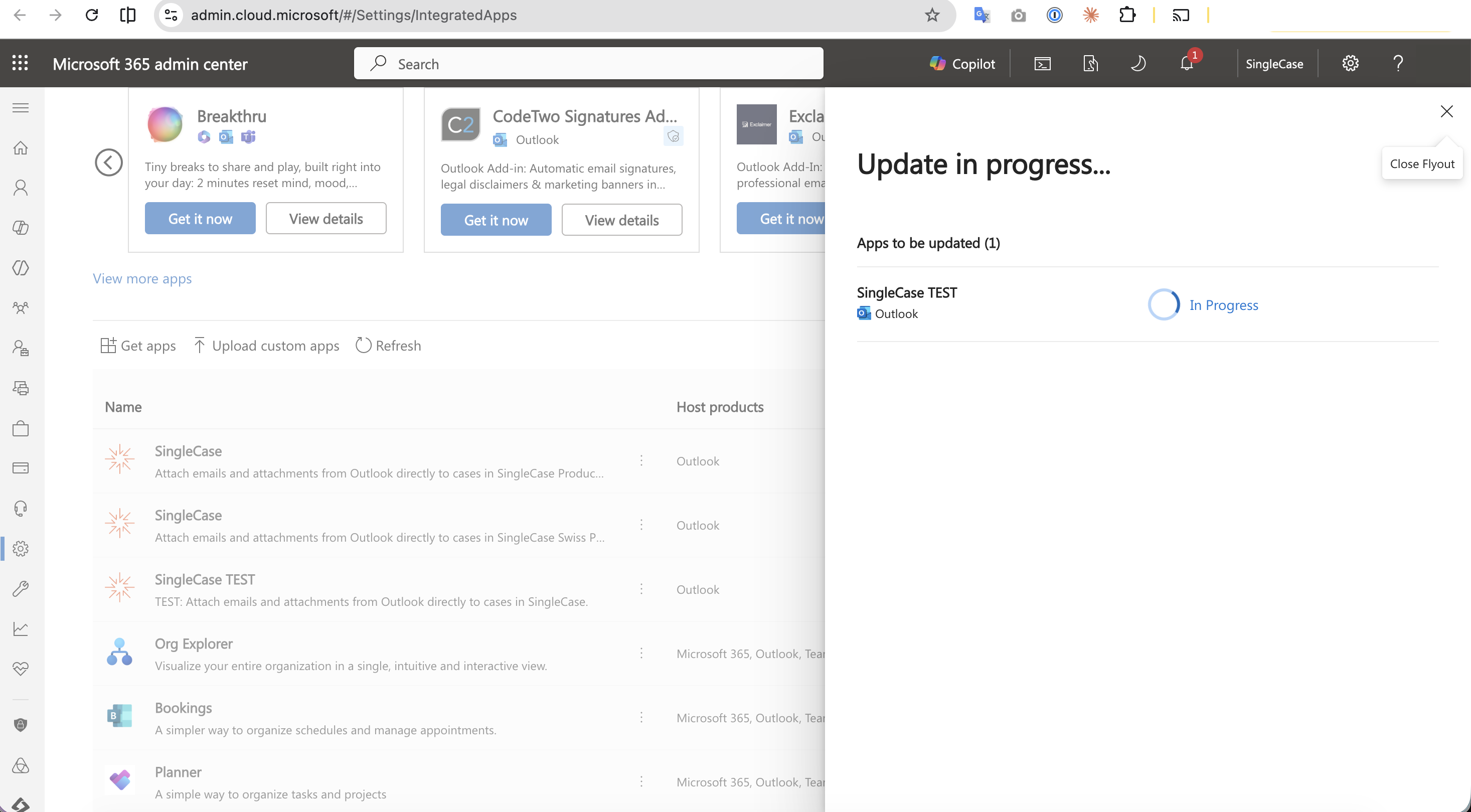
The update is applied in the background.
-
Updated successfully confirms the new manifest is deployed. Click Done. User assignments carry over — there is no need to reassign anyone.
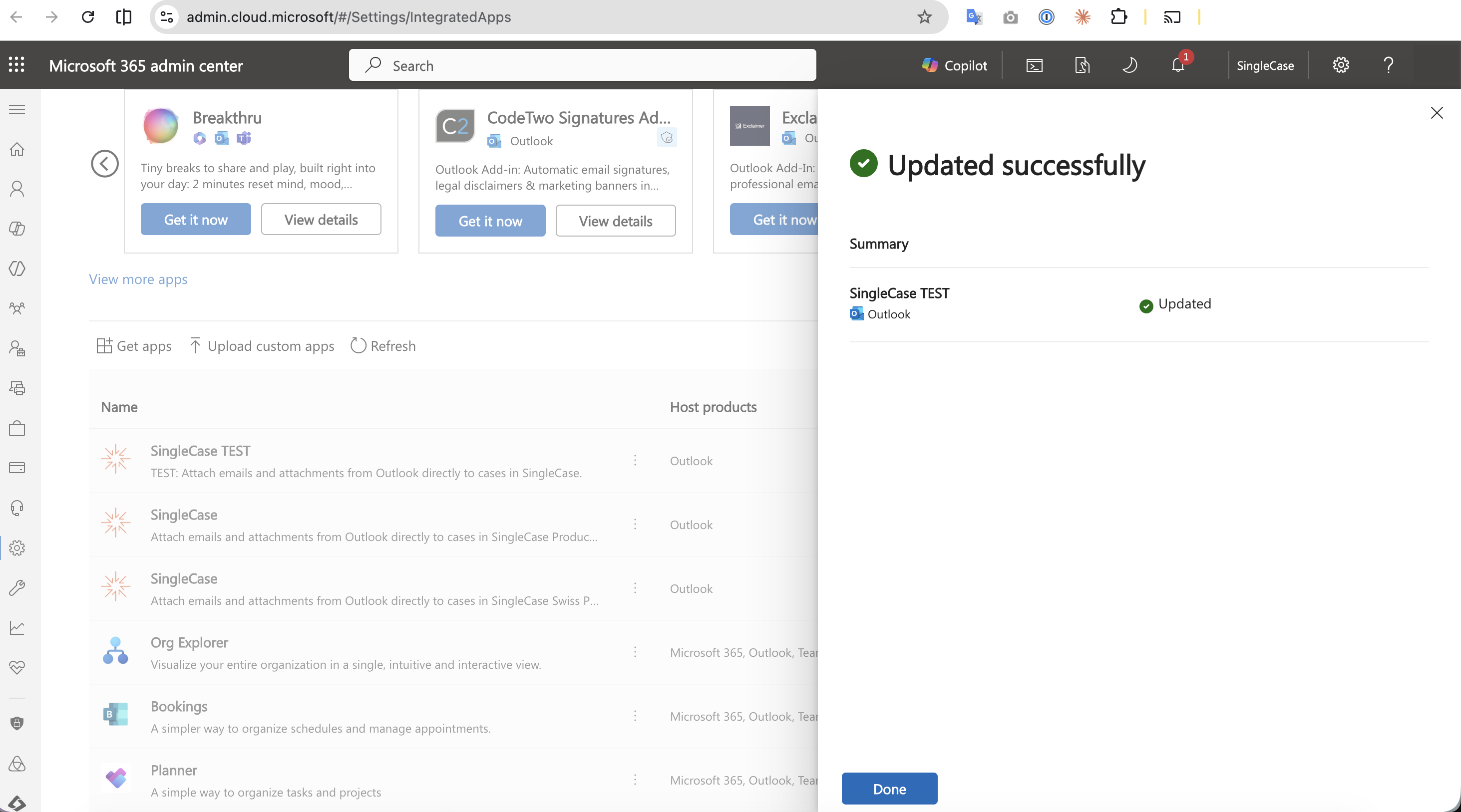
Confirmation that the manifest has been updated for all assigned users.
Because SingleCase is deployed as a line-of-business (LOB) add-in, metadata changes require the admin to upload the new manifest as above — the add-in then updates the next time a user starts Outlook.
Microsoft Centralized Deployment FAQ ↗