Enterprise Deployment
Deploy the SingleCase Outlook Add-in to your entire organization — or to a specific set of users — through the Microsoft 365 Admin Center. No action is needed from end users once deployed.
Manifest files
Use the Manifest Generator to get the correct manifest file for your environment. Enter your SingleCase workspace URL and download the file.
Prerequisites
Before you start, make sure you have the following:
Admin privileges
A Microsoft 365 account with Global Administrator or Application Administrator role.
Manifest file
Use the Manifest Generator to download the correct file for your environment.
Microsoft 365 tenant
Users must have Microsoft 365 accounts with Outlook access (Exchange Online or Outlook on the Web).
Open Integrated Apps in the Admin Center
Sign in to the Microsoft 365 Admin Center at admin.microsoft.com and navigate to Settings → Integrated apps in the left sidebar.
On the Deployed apps tab, click Upload custom apps (for a manifest file) — or use the search box to find SingleCase in the Microsoft 365 App Store and select it.
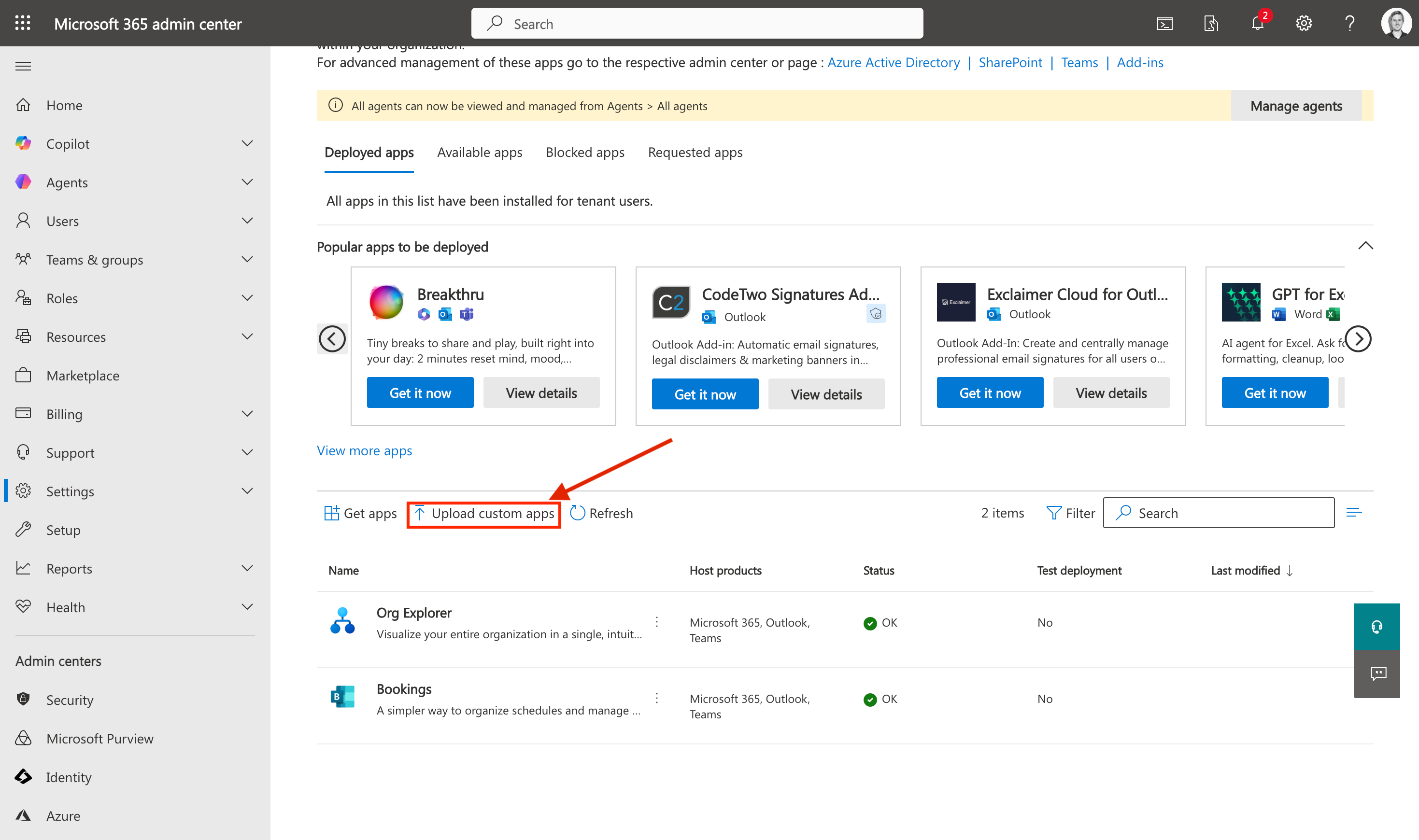
Settings → Integrated apps — click "Upload custom apps" to begin.
Upload the manifest file
If uploading a manifest: in the Deploy New App wizard, select Office Add-in as the app type, then upload the manifest file you downloaded.
The Admin Center validates the file automatically. Wait for the green Manifest file validated confirmation, then click Next.
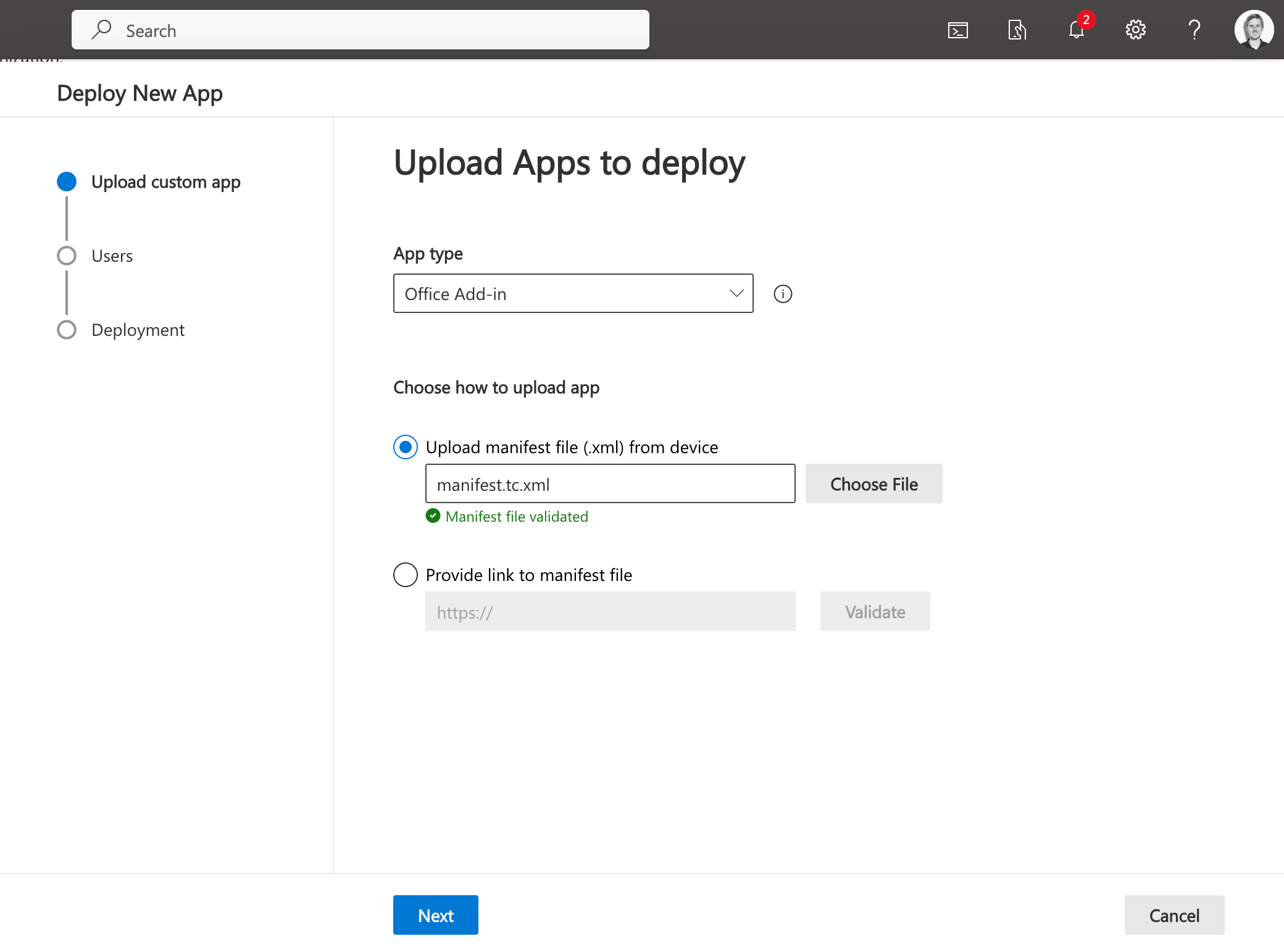
Select "Office Add-in", upload the manifest, and wait for the green validation confirmation.
Assign users
In the Add users step, choose who should receive the add-in:
| Option | Who gets the add-in | Recommended use |
|---|---|---|
| Just me | Your account only | Quick validation before rolling out to others |
| Entire organization | All users in your Microsoft 365 tenant | Firm-wide rollout |
| Specific users / groups | A defined list of individual users or security groups | Targeted or phased rollout |
If you choose Specific users / groups, type each user's name or email in the search box and add them to the list. Click Next when done.
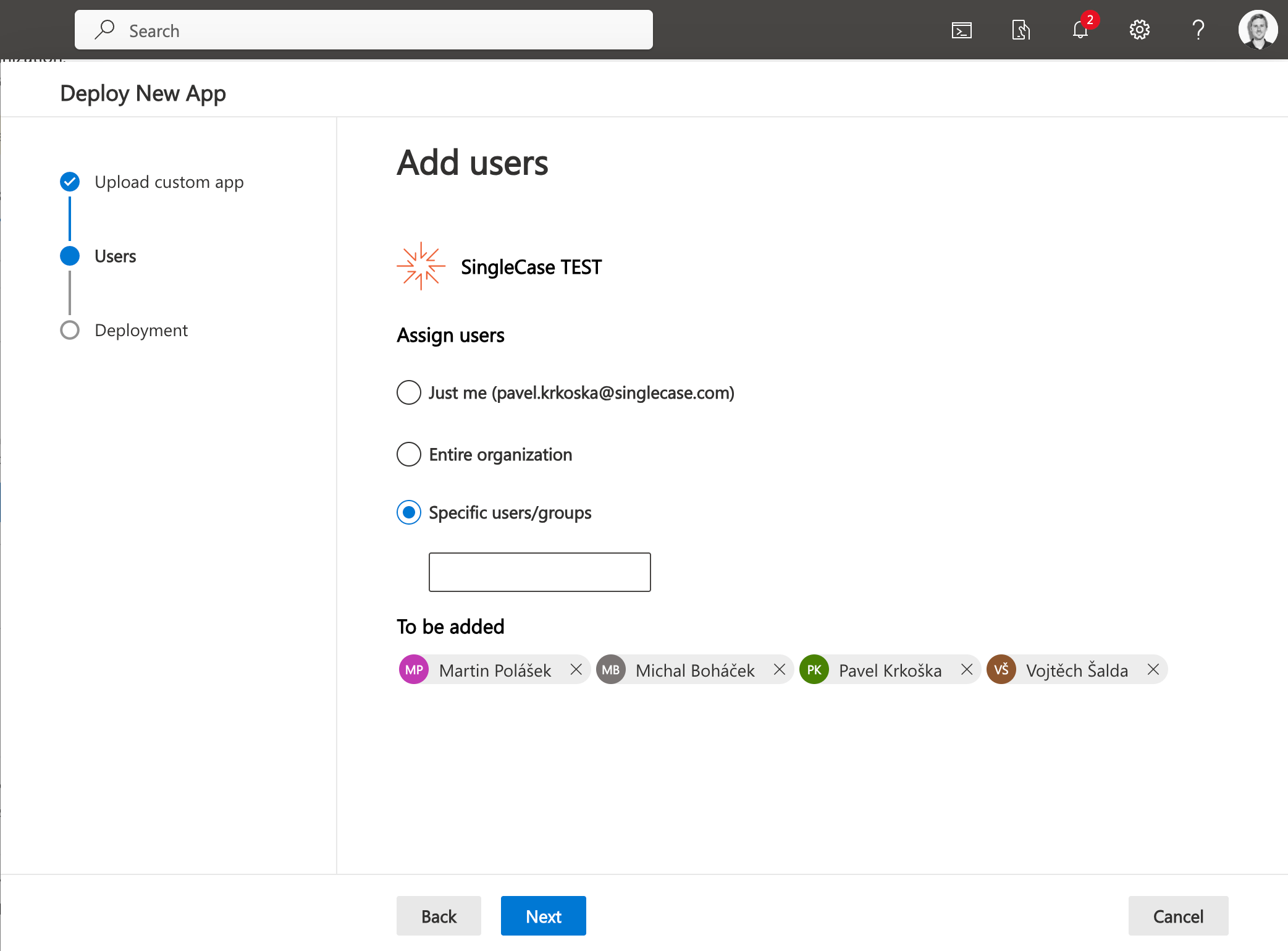
Select "Specific users/groups" and search for users or groups to add.
Review and accept permissions
The wizard shows a summary of all App Permissions and Capabilities that SingleCase requests. Review them carefully before proceeding.
The SingleCase add-in requests the following:
App permissions
- Read users' primary email address
- Allow users to sign in with their work or school account (basic profile access)
- Read basic user profile (name, picture, username, email address)
App capabilities
- ReadWriteMailbox — read and write access to mailbox items to enable filing
- SendReceiveData — send and receive data to the SingleCase server
- ProfileAccess — access user profile for authentication
- The app can launch automatically when the user sends a message
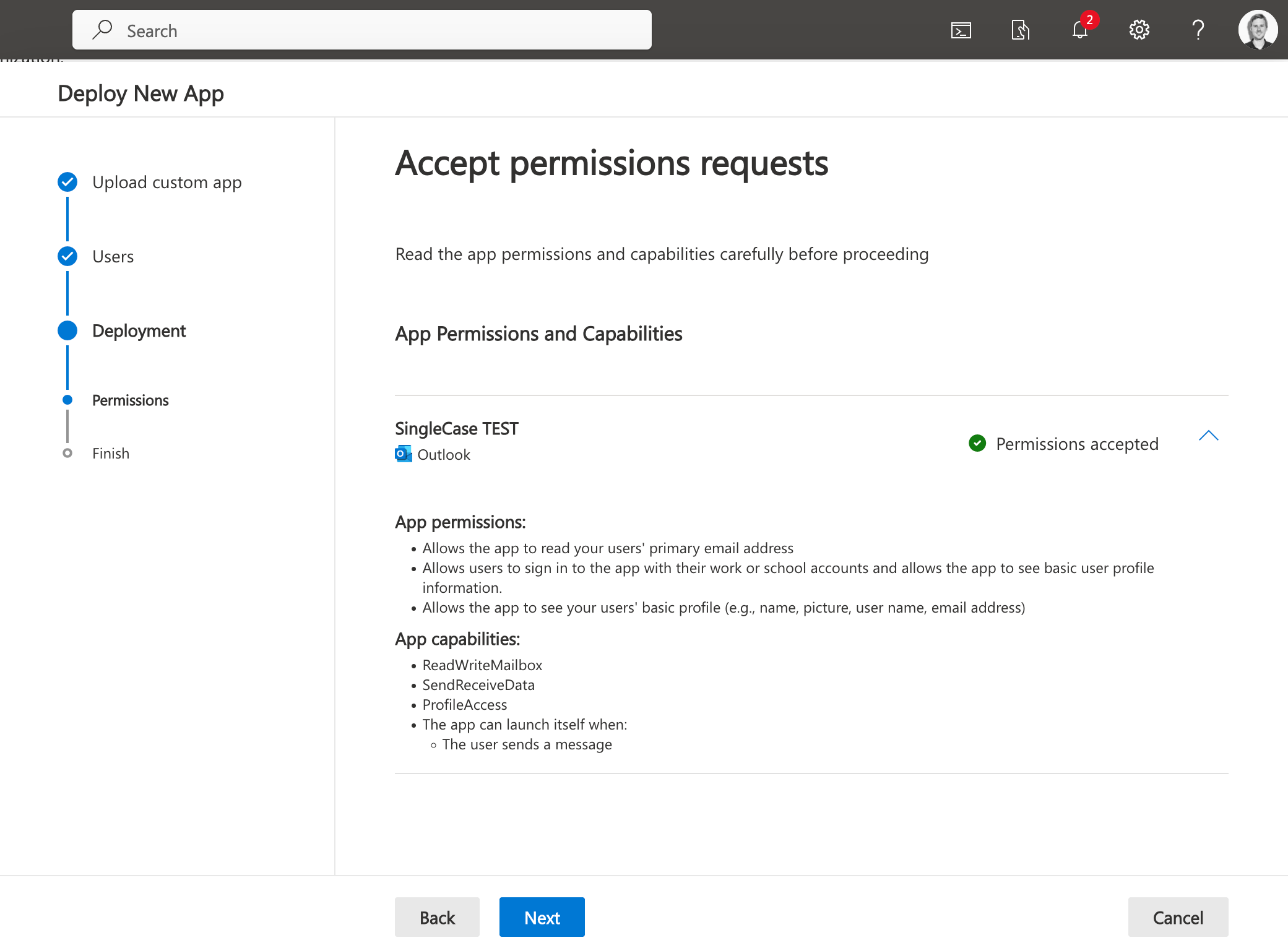
Review the permissions list — the status should show "Permissions accepted" before you click Next.
If a Microsoft consent dialog appears asking you to accept permissions on behalf of your organization, click Accept (Přijmout). This grants the app access for all assigned users without requiring each person to consent individually.
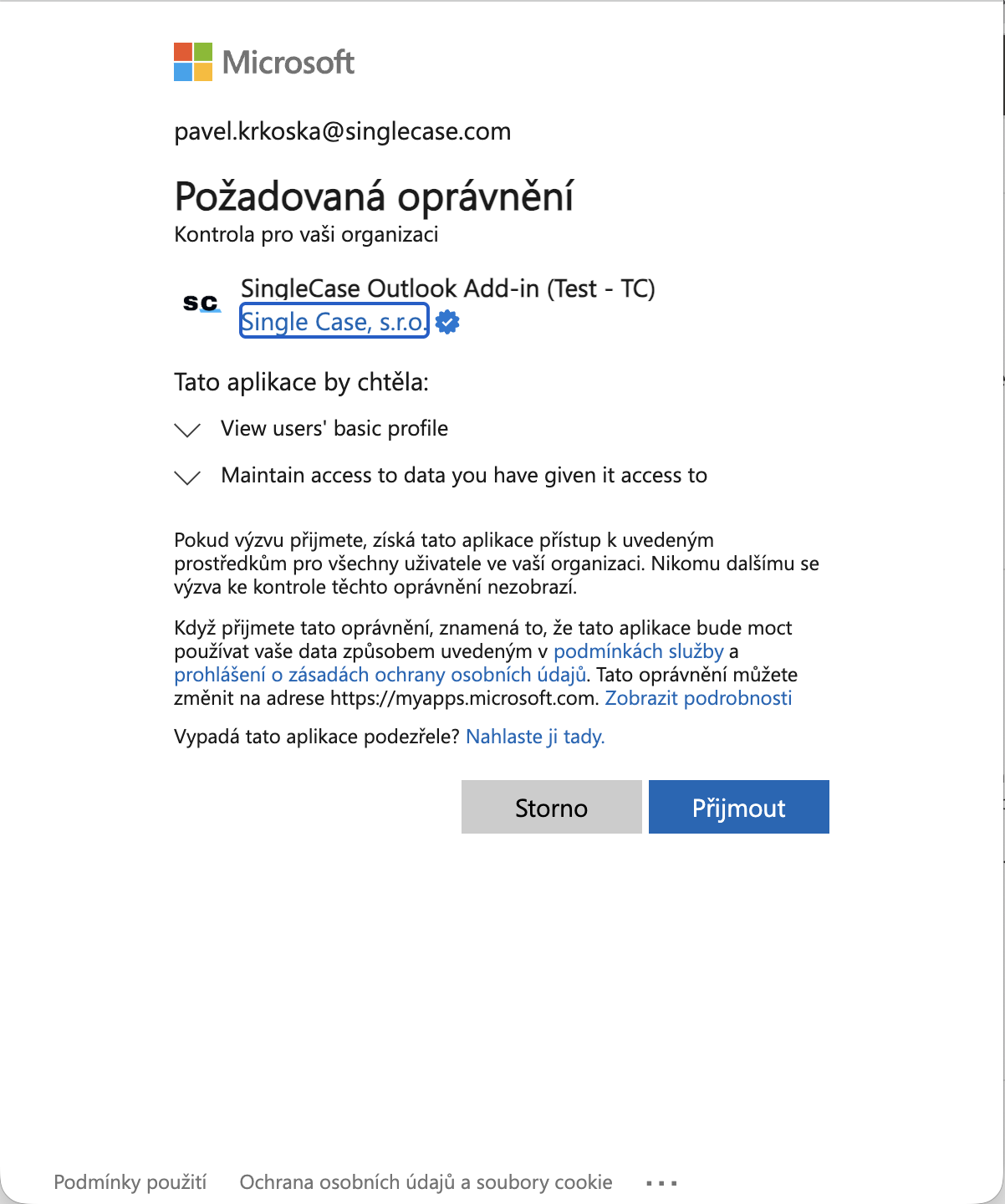
Accept the organization-wide consent on behalf of your users.
Click Next to continue.
Review and finish deployment
The final wizard screen shows a summary of everything you configured:
- The app being deployed (SingleCase for Outlook)
- The assigned users or groups
Confirm the details are correct, then click Finish deployment.
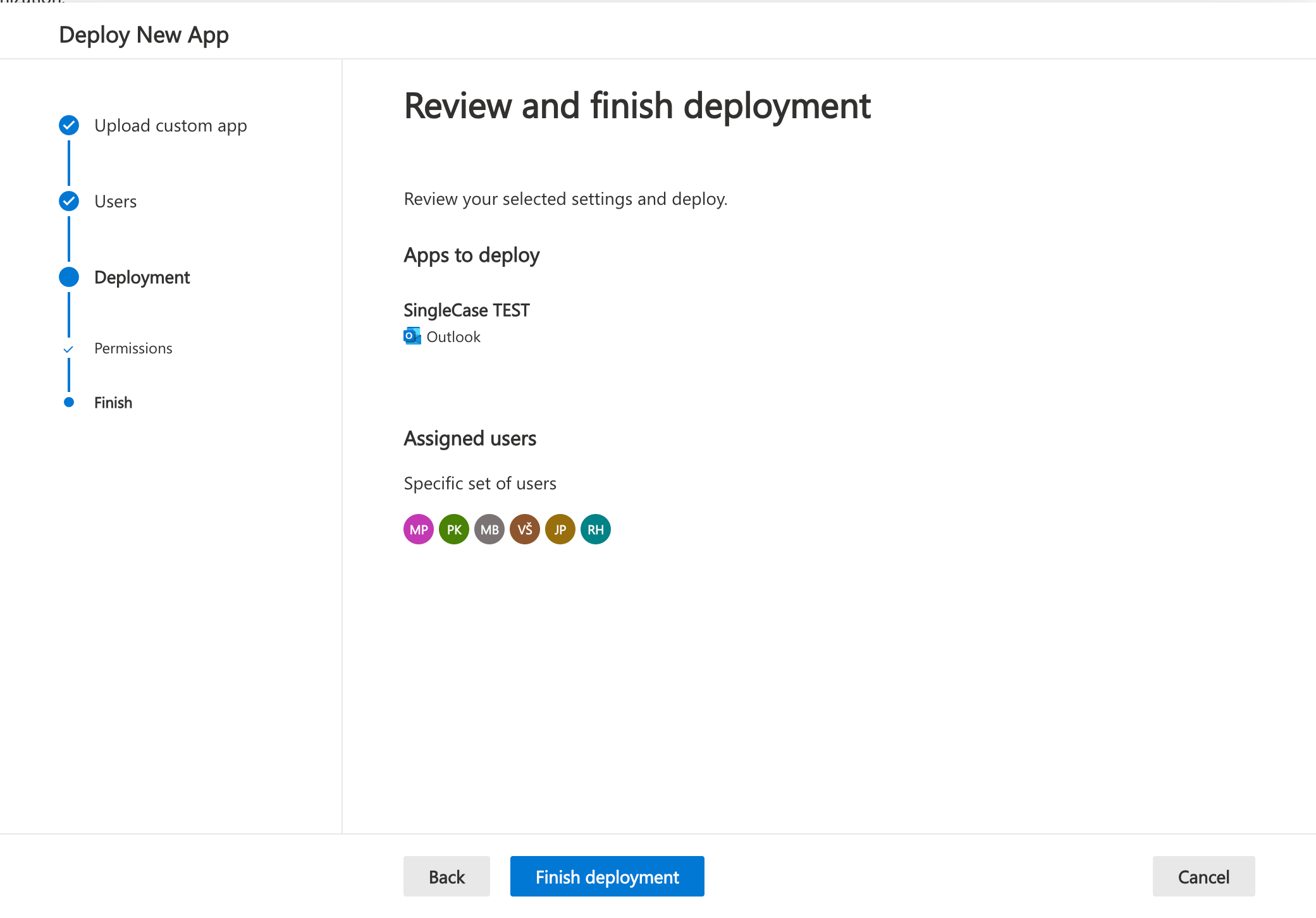
Review the summary and click "Finish deployment" to complete the process.
Verify the deployment
Once the deployment completes, SingleCase will appear in the Deployed apps list on the Integrated apps page with a status of ✔ OK.
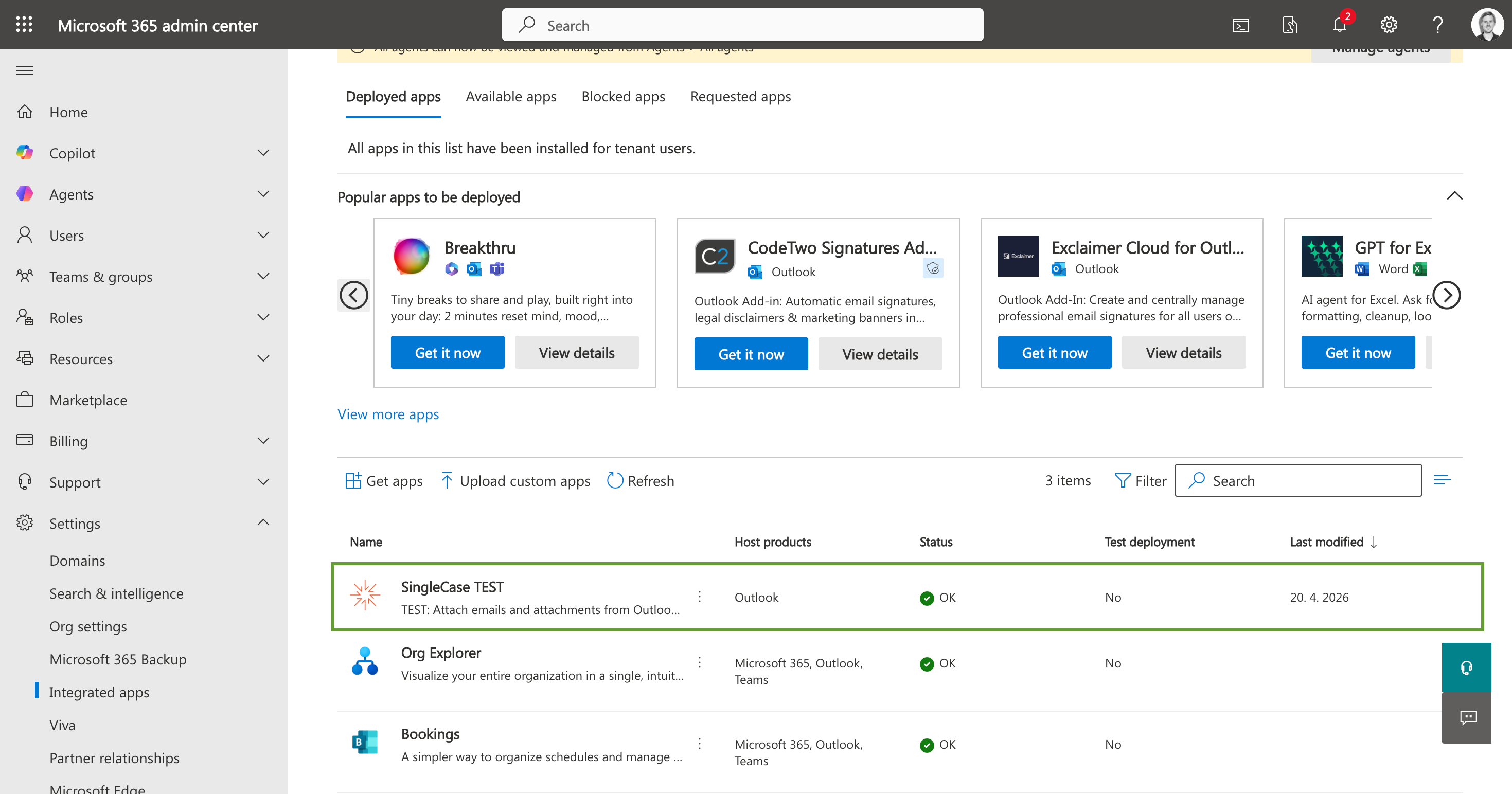
SingleCase now appears in the deployed apps list with an OK status.
Click on the app row to open the detail panel. Here you can:
- See the deployment status, app type, and description
- Review which users are assigned
- Use Update add-in to push a new manifest version
- Use Remove app to uninstall from all assigned users
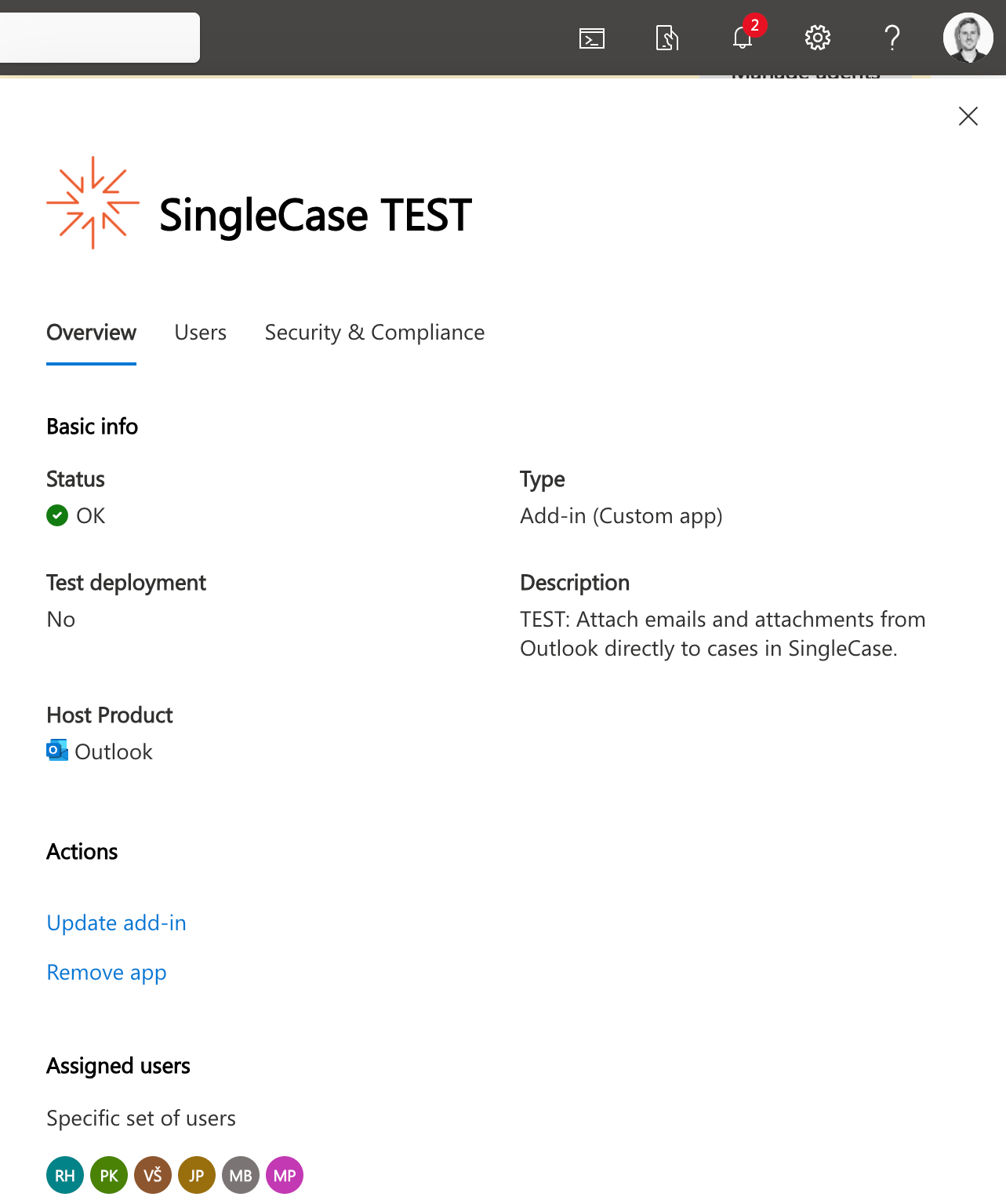
The app detail panel — manage assigned users and update or remove the add-in from here.
After deployment
User experience
Assigned users will see the SingleCase button in their Outlook ribbon (Windows, Mac) or the app icon in Outlook on the Web the next time they open Outlook. They will be prompted to sign in to their SingleCase workspace on first use — this is a one-time step.
Automatic updates
The add-in updates automatically. When SingleCase publishes a new version, all assigned users receive the update the next time they open Outlook. No re-deployment is needed.
Metadata changes are the exception: because SingleCase is a line-of-business (LOB) add-in, the admin must upload the new manifest file — select the add-in and choose the Update button in the bottom-right corner, and the add-in updates the next time a user starts Outlook.
Managing users after deployment
To add or remove users after the initial deployment, open the app detail panel from Settings → Integrated apps and go to the Users tab. Changes take effect within the standard propagation window.
Removing the add-in
To uninstall the add-in from all users, open the app detail panel and click Remove app. This removes it from all assigned users' Outlook installations.